
Multiple online identities: separation, recovery and anonymity limits
Separating online identities works only if you also separate recovery email, phone numbers, devices and payments. Changing a display name or opening a new browser profile does not, by itself, make you anonymous.
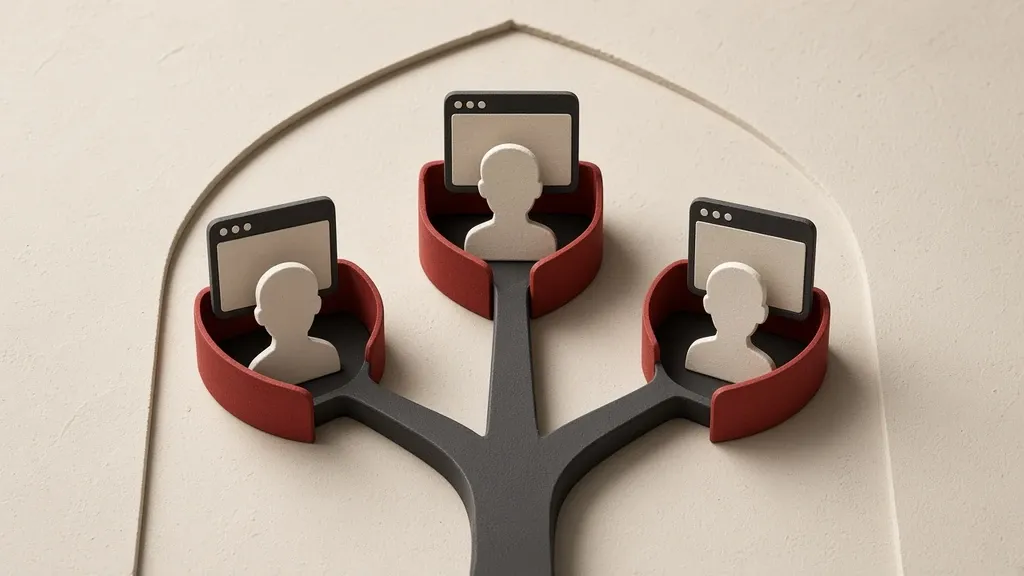
Separating online identities only works if you also separate recovery email, phone number, device and payment. Changing a display name or opening a fresh browser profile does not make you anonymous by itself. The usual goal is to keep one activity from linking to everyday life, work or family. That is not the same as hiding from everyone.
Create a separate email with the safer email accounts guide, and take the limits seriously in communication anonymity limits.
First say what should not be joined
Before you invent a new name, write down which link is dangerous for you: a real name to a pseudonym, a work account to an activism account, or a family phone number to a public address. Any link that remains—a shared recovery mailbox, a bank card, a reused photo—undoes the separation.
For many journalists, support workers and people who face online abuse, a second identity is a safety tool, not a trick for fooling a service. If a service requires legal identification for that activity, a second persona does not remove the requirement and may make the account unstable.
What stitches two identities together
- The same recovery email, or the same inbox, for both accounts.
- One number for SMS sign-in and recovery.
- Signing into the “separate” account with Google, Apple or a social network.
- The same card, app store or payment method.
- The same device without a separate profile or user, especially if both accounts are open at once.
- A similar username, face photo, bio or posting schedule.
- Synced contacts and “people you may know” suggestions.
- Photo or document metadata left over from the other identity.
Separate email and recovery
The second identity needs an address that the first identity cannot recover. If you create that address and then set the same mailbox or the same number as recovery, the separation is already broken.
- Create the new address with the safer-email guide and finish two-step verification there.
- Do not set the first identity’s email as recovery for the second, or the other way around.
- Write down backup codes for both accounts somewhere that does not depend on either inbox.
- Do not fill security questions with details anyone can guess from your public life.
- If a service demands a number to create the account and you do not have a separate one, delay that identity or accept that the number creates a link.
Do not treat a phone number as a silent link
SMS recovery on your main number ties the second identity to family, the carrier and anyone who can reach that SIM. A second number stays separate only if buying it, identifying for it and receiving its messages are also separate. Many internet numbers still sit on a main account or card.
- In each account’s security settings, see which number is registered for recovery or SMS.
- Remove a number that should not create a link, after you have another way in.
- An SMS preview on the lock screen can show a sender name or a code; limit previews for that SIM.
- Do not sync the second SIM into the same contact list the first identity uses.
Do not use “Sign in with Google” from the other account
- For a separate identity, do not tap sign-in with Google, Apple, Microsoft or the main social network.
- Create that identity’s own address and password.
- If you already signed in with the main account, disconnect the linked app in that site’s settings and close the sessions.
- Know that Hide My Email on Apple hides the address from the site, but Apple still ties it to the same Apple ID.
Separate the browser profile, and do not call it anonymity
A separate profile keeps cookies and sessions apart so one site does not see both accounts in the same browser at once. It does not hide you from the network or from device fingerprinting.
- In Chrome, select the profile picture and choose Add. You can continue without signing into a Google account so the profile itself is not tied to the main account.
- Give it a distinct name and color so you do not mix the identities up.
- Each profile has its own bookmarks, saved passwords and extensions; install an extension only in the profile that needs it.
- Edge has a similar path for adding a profile.
- In Firefox you can create a new profile at about:profiles, or use container tabs for lighter separation inside one profile.
- In recent Safari versions, add a profile in Settings and open a window in that profile.
Firefox containers for several accounts in one window
- If you use Mozilla’s official Multi-Account Containers add-on, create a clearly named container for the second identity.
- Always open that identity’s site in that container, not in a normal tab.
- A container separates cookies; the same extensions and the same IP address are still shared.
- Do not let the browser’s saved passwords suggest the first identity’s username inside the second identity’s container.
The device and operating system can still give you away
Two accounts on one phone, on the same home Wi-Fi, with the same synced contacts, still look close together to many services. A browser profile does not fully solve that.
- On Android, check Settings for a second user or, on recent versions, Private Space. If you have one, keep the more sensitive identity there and leave contact sync off.
- On a computer, a separate system user with its own login is stronger than a browser profile, because it keeps files and saved keys further apart.
- Leave the screen lock on for every user so someone who picks up the device does not see both identities.
- Limit lock-screen notifications for the more sensitive account so its display name is not visible on a table.
- Staying signed into both accounts in one official app (multi-account Instagram on the same app, for example) is convenience, not strong separation; the app knows both belong to this device.
Payment and the app store
One bank card, one App Store account or one organizational payment method in your name can join two identities for the store and sometimes for the service itself.
- Do not buy the second identity’s app with the first identity’s payment method if that link matters to you.
- Do not send the store receipt to the first identity’s inbox.
- Family sharing that shows purchases can reveal an app or service name to other people.
- If you have no choice but the same card, accept that separation is incomplete at the payment layer and tighten the other links.
Photos, usernames and behavior
- Do not reuse the same handle, username or bio on the second identity.
- Do not use a face photo or a room that also appears on the visible identity.
- Before you upload, check metadata and the background.
- Do not copy the first account’s friend or following list; “people you may know” feeds on exactly those patterns.
- A very regular posting time and the same writing style can bring two accounts close together for anyone who reads both, even without a shared name.
Turn off contacts and sync
- On the phone, turn off contact sync for the second identity’s account.
- Do not grant the second identity’s app access to the address book unless you truly need it.
- Decline uploading your contact list to “find friends.”
- If the app already took contacts, see whether that service’s settings let you delete the uploaded list.
Do not recover one identity through the other
If a separate identity locks and its recovery path is the first identity’s email or number, you either lose it or you relink the two to get back in. Solve this on day one.
- Write backup codes on paper or in an encrypted place, not in the other identity’s mail.
- If you use the same security key for both, know that it is one shared physical object; store it with the sensitivity of both accounts in mind.
- Keep at least one second sign-in method for the sensitive identity that does not depend on a family number.
- If you rarely open the second identity, sign in every few months so the service does not close it for silence and so you do not forget the password.
Take anonymity limits seriously
Good separation prevents everyday mistakes and many surface links. Someone with lawful access to connection history, an app store, a carrier or the service itself may still put pieces together. A home network, a browser fingerprint and behavioral patterns are part of the same limit. The communication anonymity guide covers this in more detail. If you face that layer of risk, do not treat separation on this same phone and Wi-Fi as enough.
Common mistakes
- Creating a new account with “Sign in with Google” on the usual account.
- Setting the main email as recovery for the second identity.
- Opening both accounts in one browser profile and flipping tabs.
- Using the same face photo with a different crop.
- Buying a number or a subscription for the second identity with the same card and the same receipt.
- Syncing contacts and then being surprised by mutual-friend suggestions.
- Assuming a VPN by itself separates two accounts.
When not to create a separate identity
Every new account means another password, another recovery path and more responsibility. If you cannot keep its email and two-step verification in good shape, one solid account is better than two weak ones. If a service clearly wants a real identity, working around that with a pseudonym may close the account without warning. For organizational work, a named role with clear permission is sometimes more stable than a hidden persona.
Do not tie two-step verification to the main account
If an authenticator app syncs the second identity’s codes into a cloud signed in as the first identity, that is the link. This mistake happens quietly.
- See whether the authenticator syncs to a Google account or a phone number.
- If Google Authenticator is connected to the first identity’s Google account, do not store the second identity’s codes there.
- For a separate identity, use an app without cloud sync, leave sync off, or build a separate context that is not tied to that account.
- Do not save the setup QR image in the visible identity’s photo library.
- An app tied to a phone number has the same limit as that number; use it for a separate identity only when the number is separate too.
Passkeys on the same device
A passkey is convenient and lives on the same phone or computer. Anyone who unlocks the device may see the list of saved accounts. The device itself also becomes the shared ring for both identities.
- Before you create a passkey for the second identity, decide whether unlocking this device should reach both accounts.
- If the second identity is more sensitive, prefer a password plus separate backup codes, or store the key in a separate user context.
- Leave browser password autofill on in the second identity’s profile only for those accounts.
- Label password-manager entries clearly so the wrong suggestion does not appear.
Review sessions and connected apps
- In each account, open that service’s security page and read the signed-in devices.
- Sign out any device that should not belong to this identity.
- Open connected apps and sites, and cut access from the main account to tools used by the second identity.
- In a Google account, read the recovery section: which email and which number sit there.
- Do the same review for an Apple ID or a Microsoft account if you use them.
A separate user on Windows and Mac
- In Windows, add another user from Accounts settings, preferably a standard user, with its own password.
- Open the more sensitive identity only in that user; the browser and downloads stay there.
- After you finish, lock or sign out of fast user switching so windows are not left on the desktop.
- On a Mac, add a new user in Users & Groups and turn on fast user switching if you need it.
- Do not sign the first identity’s iCloud or Google account into that user.
- Do not put second-identity files in the users’ shared folder.
Private Space and a second user on Android
- Look in your version’s settings for multiple users or, on recent releases, Private Space.
- If Private Space is available, set it up with a separate lock and install the second identity’s app there.
- Do not sign the first identity’s Google account into that space.
- If you only have a second user, sign in as that user and leave contact and gallery sync off.
- Do not show that space’s or user’s notifications on the lock screen.
What separates on iPhone and what does not
iPhone is not designed for two complete identities. One Apple ID, one store and many sync features stay tied to the same device. What still helps is limiting what appears on screen and separating the browser, not a claim of anonymity.
- Open the second identity in a separate profile or browser, not in the same Safari session that holds the main account.
- Control password save suggestions and autofill for those sites so the main name is not offered.
- Turn off or limit notification previews on the lock screen.
- Check notification mirroring to a Mac or Watch; a larger screen can show that name to other people.
- Family Sharing exposes purchases and subscriptions to family members; do not buy a second-identity app that way if it should stay unseen.
Do not let the two identities interact
- Do not like, comment on or repost the first identity’s posts from the second.
- Do not invite yourself from one account to the other, and do not edit the same document at once under both names.
- Send calendar invites, video calls and email signatures under the identity that belongs to that task.
- If something must move between the two contexts, do it deliberately and in a way that does not create an account-to-account trail; copying text on the same device is usually lower risk than mailing from one identity to the other.
- Search the unique username and see whether it appears next to your real name.
Do not over-count a VPN or the network
A VPN changes your network address, but if you open both accounts from the same browser or after signing into both, the service can still put the behavior side by side. Using the separate identity only behind a VPN, while the main identity always signs in from home without one, can even create a distinctive pattern. Treat the network as one part of separation, not a substitute for it. Read the limits in the communication anonymity guide.
Match the password manager to the profile
- Limit the password-manager extension in the second identity’s profile so it does not suggest first-identity accounts.
- If the software offers a separate space or vault and the cost of a mix-up is high, consider that for the sensitive identity.
- Trigger autofill on a sign-in page only after you have checked the real site address.
- Name entries so you can see at a glance which identity they belong to.
Do not build a sensitive identity on a work device
A work phone or laptop may be managed: app installs, some traffic, mail sync and even browser profiles can be visible to IT. A second identity that should not link to work is not separate on that device.
- If the device has a work profile or management software, do not create or sign into the sensitive account there.
- Do not try to work around organizational extensions and browser profiles; that environment is still under the same policy.
- Do not mix work backup and file sync with files from the separate identity.
- If you only have a personal device for this, keep that one for the sensitive identity and leave the work device for the job.
Keep the sign-up form light
- Leave optional fields such as birthday, gender, location and phone empty unless the service will not continue without them.
- On first run, decline find-friends prompts and access to contacts and photos.
- Choose a time zone and language that do not reveal more place or identity than you need to use the account.
- Search a username before you register it so it is not the same unique spelling as your other life.
- Leave the bio empty or very generic; a clever hint often creates the same link.
If you already created a link
Many people start a second identity with the main email or the same photo. Some of those links can be reduced later; some remain in other people’s memory or in saved copies.
- Open recovery and sign-in settings and fix the email, number and sign-in-with-another-account options.
- Change a reused photo and username, and remove matching bio text.
- If a post or message went out from the wrong account, delete it if you can, and do not explain it publicly from the other identity.
- Close sessions on old devices.
- If the link is already wide and the risk is high, closing the account and starting clean is sometimes cheaper than untangling it; move any codes and contacts you still need to a safe place before you close it.
Count shared household devices too
A shared tablet, a smart TV or a computer that the rest of the family unlocks can show a notification, a profile picture or a saved tab from the second identity. Separation is not only about strangers.
- Do not leave the sensitive account signed in on a shared device, and turn off automatic sign-in.
- If you already uploaded contacts to find friends, see whether that service’s account center lets you delete the uploaded list.
- Do not expect friend suggestions to stop the moment you delete the list; the effect may linger.
- On a shared tablet, limit notification previews and sign out after you finish so a display name is not left on the screen.
What to do today
- Write down which link between names is dangerous for you.
- In the account that should stay separate, open recovery email, phone number and sign-in with another account, and cut the shared links.
- Create a clearly named browser profile and open only that identity there.
- Store backup codes outside the other identity’s inbox.
- Turn off contact sync for the second identity, and replace any reused photo.
Related guides

Passwords
Strong passwords: create them, remember them, protect them
Use a long, unique password for each account and let a password manager keep most of them. Length matters more than extra symbols; memorize the master passphrase and your device…

Passwords
Two-factor authentication: which method, how, and a recovery plan
Two-factor authentication protects an account even if the password leaks, but methods are not equal. Prefer an authenticator app or a passkey over SMS for important accounts, and…
Passwords
Password managers: choosing one, backups and recovery
A password manager creates a different password for each account and keeps them in an encrypted vault. Whether you choose a local file or a syncing service depends on your devices…

Internet connection
Safer browsing: destinations, permissions and privacy boundaries
Safer browsing means an updated browser, checking where a link really goes, and giving sites fewer permissions. The HTTPS lock only encrypts the path to that address; it does not,…

Communication
Social media: audiences, access and reducing disclosure
Privacy settings limit who usually sees a post; they do not turn it into a private message. Think about the harm if the content travels further, consider people visible in the…

Communication
Safer email: account protection, archiving and message encryption
Email is often the key to every other account, so protect the account first with a unique password, two-factor authentication and a check of forwarding rules. The HTTPS lock is…