
Social media: audiences, access and reducing disclosure
Privacy settings limit who usually sees a post; they do not turn it into a private message. Think about the harm if the content travels further, consider people visible in the photo, and protect the account itself with a unique password and two-factor authentication.
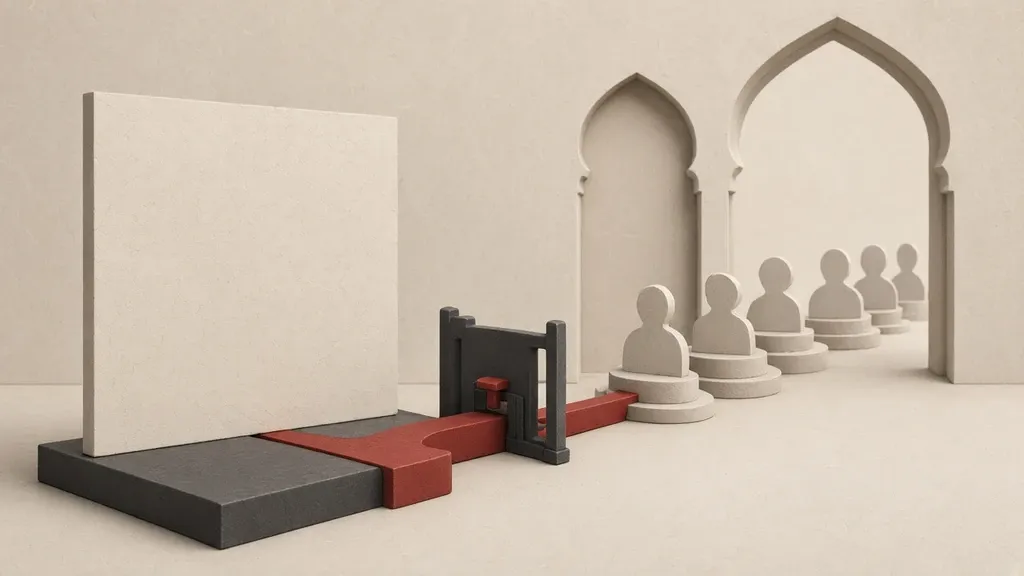
Privacy settings limit who usually sees a post; they do not turn it into a private message. Anyone allowed to see it can take a screenshot, save it or reshare it somewhere else. Before you publish, ask what harm would follow if that image or sentence left the circle you have in mind, consider the people visible in the photo, and lock the account itself with a unique password and two-factor authentication.
Choosing a channel for something that should not be public at all is covered in private communication. Before you send or upload a file, review metadata and the background in removing identifying information. You can find each app’s settings in more detail in that tool’s own guide in this set; this page is about what they all have in common.
Choose the audience first, then publish
Many slips come from a habit of leaving the default on public. Draft the post for yourself, set the audience on purpose, then tap publish. Public, friends, close friends, a custom list and “only me” each create a different circle. Even “friends” is a large circle on a network with hundreds of acquaintances.
- On the same compose screen, open the audience control and see what it is set to now; do not trust your memory.
- For something only a few people should see, consider a message or a small group instead of a post.
- Do not assume a story or temporary status is private. Saving, screenshots and sometimes other tools make it last.
- Treat a live broadcast as more sensitive than an ordinary post: you have less control in the moment, and the background and sound leak more.
- If the app has a close-friends list or similar circle, use that for a limited topic rather than the whole friends list.
After publishing, check the audience on the post itself once more. Some apps apply a different setting to a new post if you send it from a computer, a phone or an older version.
What stays visible on the profile
A profile is separate from a single post: the name, photo, bio, city, workplace, links and sometimes a number or email. People who do not follow your posts at all can still see these.
- Open the profile while signed out, or from a private window, and see what a stranger sees.
- Remove a full date of birth, phone number, email address, precise workplace and links to other accounts if they are not needed.
- Check the profile and cover photos for background, signs, an ID card and an unlocked computer screen.
- If the app lets you, limit who can see follower and following lists; those lists sometimes reveal relationships.
- In privacy settings, see who can find you by email or phone number, and turn off address-book upload if you do not need it.
Tags, location and friend suggestions
Being tagged in other people’s photos, or leaving location on a post, is a disclosure that is not always in your hands. Friend suggestions based on contacts and mutual friends can also join two separate lives together.
- Turn on tag review so a photo appears on your profile only after you approve it.
- Remove a precise location from posts unless you mean that place to be seen. Turn off live location after a meeting.
- Turn off contact syncing in the app’s settings if you do not want acquaintances’ numbers used to suggest you to other people.
- Ask people who put you in a public photo without checking to remove the tag or limit the photo; do the same for others.
- If an app offers “people” or face recognition, see whether turning it on helps you or only makes you easier to find.
Weigh the people inside the frame separately
A photo that is harmless for you may be risky for someone else in the frame: a child, a colleague, someone who does not want their location known, or a document on the table behind you. Your consent does not replace theirs.
- Before you publish, enlarge the background: signs, cards, screens, envelopes, number plates and clothing with a name on it.
- If another person is identifiable, ask them, cover that part, or do not send the photo.
- Do not post photos of an ID card, a ticket, a medical form or an account screen, even to “friends”.
- Watch a video through to the end; something that crosses the frame in the last second lasts just as long.
- Before you upload, make a fresh export without location metadata; do not upload the camera’s original file directly.
Treat comments, reshares and saves as publishing
Writing under someone else’s post, resharing, or saving into a public collection is also publishing. A joke in a place whose audience you do not know may be quoted without its context.
- Before you comment, see whether that page is public.
- Reshare only when you accept the right to do so and the consequence of it travelling again.
- Move a sensitive conversation from a public comment thread to a private message and, if needed, to a safer channel. Do not put a screenshot of a private chat on a story or a post; you have widened the circle without the other person’s agreement, and sometimes another number or name is visible in the frame too. If a quotation is needed, ask permission and remove identifying details.
- Limit comments on your own posts if harassment, or being pulled into a public argument, is a problem.
Review the past as well
A post that was harmless years ago may now reveal a new job, family or situation. Search engines and archive sites sometimes keep it even after you delete it.
- Walk through your own timeline with date and place filters.
- If the app can limit old posts to friends, use that for very old public content, then delete or archive the truly sensitive items separately.
- In settings, see whether search engines are allowed to index the profile; if not, turn that off.
- Do not treat deleting a post as the same thing as it vanishing from the internet. A screenshot or a reshare may remain.
- If the app offers an export of your data, request it once so you can see what is actually stored; keep that export somewhere safe.
Treat the account like a front door
The strongest audience setting is useless if the account is taken over. Someone inside it can make posts public, message other people or download the history.
- Give this account a unique password and keep it in a password manager, not the same password you use for mail or a shop.
- Turn on two-factor authentication and, if the app allows it, prefer an authenticator or a security key over SMS.
- Look at active sessions and signed-in devices in the security settings and remove any device you do not recognise.
- Review apps and sites that sign in with this account and remove access you do not need.
- Check that the recovery email and number are yours, and leave alerts for new sign-ins on.
If you see a sign of an unknown sign-in, change the password from a healthy device and close the sessions; containing an account is covered in the account-recovery guide in this set.
Do not mix work and personal life
A work account often carries the organisation’s rules and may remain available to other people after you leave the job. Do not put personal material there, and do not put an internal document on a personal public account. If you manage both from the same phone, at least keep the accounts separate and check the publishing default each time so a work post does not go out on the personal account, or the other way around.
Children, family and a shared account
Posting a steady stream of a child, a school, the route home or the daily routine is something the child cannot easily take back later. If a family shares one account, everyone is effectively close to the audience and the messages. For shared purchases or parental supervision, use that service’s official tools, not one password on an adult’s account.
What should not be written in this space at all
Do not put passwords, confirmation codes, a photo of both sides of an ID document, the live location of someone who does not want to be found, or other people’s private conversations in a post or a story. If something should reach only one person, pick a more suitable channel from the private-communication guide, not a post whose audience is “close friends” and that can still be saved.
Common mistakes
- Treating “friends only” as the same thing as a private message.
- Uploading the camera’s original photo with a location stored in the metadata.
- Tagging other people without asking.
- A reused password and no two-factor authentication on an account with years of history.
- Uploading the whole address book in order to find a few acquaintances.
- Assuming that deleting a post means no copy remains.
On Facebook, set audience and history separately
Facebook has a privacy checkup that is more useful than rummaging through menus.
- Open the Settings & privacy menu and run Privacy checkup.
- Look at the default audience for new posts and, if it does not need to be public, change it to friends or a specific list.
- Under audience and visibility settings, see who can see the friends list, birthday and contact details.
- If years-old content is public, run limit past posts once, then delete or archive truly sensitive posts separately.
- From the same security settings, review the password, two-factor authentication, login alerts and connected apps. If several Meta accounts are gathered in Accounts Centre, review security there for all of them.
On Instagram, a private account is only the first step
Making an account private means only people you approve see new posts. Stories, reels, tags and messages are still other paths for disclosure.
- Go to Settings and activity > Account privacy and turn on a private account if you need one. Do not later accept sitting requests only because there are many of them.
- Under tags and mentions, set who can tag you and require tags to be reviewed before they appear on the profile.
- Hide the story from specific people if you need to, but do not treat hiding as a substitute for not posting.
- Leave location off when you publish unless you mean the place to be seen.
- If activity status and read receipts feel like a disclosure, limit them in the message settings.
On X, protecting posts is different from mentions and tags
- Go to Settings and privacy > Privacy and safety > Audience and tagging.
- If you do not want posts open to everyone, turn on protect your posts. Older posts that were public may still exist somewhere else.
- Limit photo tagging.
- Under safety, see who can message you and how you filter sensitive content.
- Review sessions and connected apps under security and account access.
For YouTube, TikTok and the rest, the logic is the same: the publishing default, who can comment or reuse you in a video, and whether the profile can be found by phone number. Each tool’s own guide has the details.
Who can message, mention or comment
A public comment thread is sometimes riskier than the post itself; the conversation stays there and other people see it.
- In each app’s privacy settings, limit who can message you from outside your circle.
- Allow mentions only from followers or a smaller list if harassment, or being pulled into a public debate, is a problem.
- On an important post, if the app allows it, limit or turn off comments.
- Try restricting or muting before a long confrontation; block when a clear line has been crossed.
Connected apps and sites
Signing into a shop, a contest or a “follower analytics” tool with a social account may give that app access to your name, friends list or posts.
- Open the list of apps with access in security settings or Accounts Centre.
- Remove any name you do not remember or no longer use.
- Do not grant access to an unknown tool that promises extra followers or a prize.
- After you remove access, change the password if that app may have stored it.
Syncing contacts and being found by number
Giving the address book to an app helps you find people you know and at the same time hands that service numbers of people who were never on the network. Other people may also be shown you as a suggestion based on the number.
- Turn off the app’s access to contacts in the phone settings and in the app itself if you do not need it.
- Set find-me-by-phone or email to nobody, or to friends only.
- Do not send a mass address-book invite to a group or a page.
When a job or your life changes
A new job, city or public role is a good reason to review the profile and old posts once. Something that was normal for the previous job may now show too much of where you live, new colleagues or your family. Include group memberships, events you said you would attend and photos with locations in that same review.
Archiving, deleting and closing an account
Archiving usually takes content off the profile but keeps it with you and sometimes with the service. Deleting a post reduces what others see; it does not guarantee complete erasure. Temporarily deactivating an account closes other people’s access, and permanent deletion has its own process and waiting period. Before you delete permanently, download your data if you need it. Do not hand the account to someone who offers to “clean it for you” and asks for the password.
Finish two-factor authentication and login alerts here
For Meta accounts, Accounts Centre is usually the single place for the password and two-factor authentication.
- From Instagram or Facebook settings, open Accounts Centre > Password and security.
- Turn on two-factor authentication and, if you can, prefer an authenticator or a security key over SMS.
- Store the backup codes somewhere other than the app itself.
- Leave alerts for unfamiliar sign-ins or security warnings on.
- On X the similar path is Settings and privacy > Security and account access > Security > Two-factor authentication. Review active sessions there too.
Old Facebook posts and a data export
- In Privacy checkup or audience settings, find limit past posts. That usually limits old public posts to friends; it does not delete them.
- After that, search: decide separately about a place, a former workplace, a number, a document or a family photo.
- If you export your data, request the download from those same Facebook settings or Accounts Centre and keep the file on a safe device; the export itself is a complete copy of the history.
- Do not send the export to other people or to a public cloud folder.
Groups, events and saying you will attend
Group membership and tapping “going” on an event are sometimes visible on the profile and show an interest or a time and place.
- In Facebook settings, see which group memberships are public and hide or leave anything that should not be found.
- For a sensitive event, do not announce attendance publicly.
- Do not invite other people to a group or event without checking with them; you put them in that circle too.
- Review old work or local groups; the group name alone is sometimes information.
A shared device and notification previews
On a shared computer or phone, an open session means anyone can reach your draft posts, messages and friend suggestions. Sign out when you finish. A lock-screen notification preview shows the first line of a message or the name of someone who tagged you; reduce that in the phone’s notification settings for these apps.
If someone creates an account in your name
If you see a fake profile with your name and photo, use that service’s official report path rather than a long argument under the same page. Tell people you know which account is yours. Check the password on the real account so a takeover is not happening at the same time. A private message offering “support” to restore your reputation is often a deception itself.
Stories, close friends and hiding
A close-friends list is better for limited material than all followers, but it is still not a private message. Hiding a story from a few people helps when the circle is large and you have a few exceptions. If the close-friends list has grown old and crowded, prune it before you send something sensitive. Do not rely on hiding as the solution for something nobody should see.
When you publish is information too
Announcing in the moment that “we are not at home”, posting a travel ticket before you go, or showing the daily school route on a story tells someone who knows you more than the plain text does. For a sensitive place, post with a location after you have left, or do not post it. Do not combine an “on the way home” story with live location.
- Before you announce a trip, ask whether someone needs to know at that moment or whether after you return would be enough.
- Keep tickets, boarding passes and entry barcodes out of the frame.
- If you regret a post after publishing, delete or limit it and assume that anyone who saw it at the time may have a copy.
Posting to several networks at once
Sending one post from Facebook to Instagram, or from a management app to several accounts, mixes audiences. Something you meant for friends may also go out publicly on another network. If you use such a connection, check each destination’s audience before every post and disconnect old links under connected apps.
Professional accounts and activity off the app
Switching to a professional or creator account usually gives more statistics and sometimes makes a category, contact email or business location more public. If you do not need those statistics, a personal account is enough. Some networks also attach your activity on other sites to the account for advertising. That is more an advertising-privacy issue than a security one, but the same link can make your interests and movements around the web clearer to the service. If that matters to you, review it under ad settings or off-Facebook activity and limit it if you can.
What to do from today
- Open the profile through a stranger’s eyes and remove extra information.
- Change the default post audience away from public if you do not need it.
- Turn on tag review and limit being found by phone number or email.
- Set a unique password and two-factor authentication, and review sessions and connected apps.
- Before the next post, check the background, the people in the frame and the metadata.
Related guides
Communication
Suspected account compromise: contain, recover and revoke persistent access
If an account may have been taken over, change the password from a device you trust, sign out other sessions, and review recovery methods and forwarding rules. Changing the…

Assess and plan
Private communication: choose channels, verify contacts and limit disclosure
Private communication depends on more than the messenger’s name. Weigh the encryption of that specific chat, who the recipient really is, who else is in the group, and where…

Passwords
Strong passwords: create them, remember them, protect them
Use a long, unique password for each account and let a password manager keep most of them. Length matters more than extra symbols; memorize the master passphrase and your device…

Passwords
Two-factor authentication: which method, how, and a recovery plan
Two-factor authentication protects an account even if the password leaks, but methods are not equal. Prefer an authenticator app or a passkey over SMS for important accounts, and…
Passwords
Password managers: choosing one, backups and recovery
A password manager creates a different password for each account and keeps them in an encrypted vault. Whether you choose a local file or a syncing service depends on your devices…

Phones and computers
Malware and phishing: prevention and proportionate response
Phishing tries to trick you; malware is unwanted software. They are related but not the same. Pause before you act on urgent messages, keep software updated from official sources,…