
Safer email: account protection, archiving and message encryption
Email is often the key to every other account, so protect the account first with a unique password, two-factor authentication and a check of forwarding rules. The HTTPS lock is not the same as end-to-end encryption of the message body.
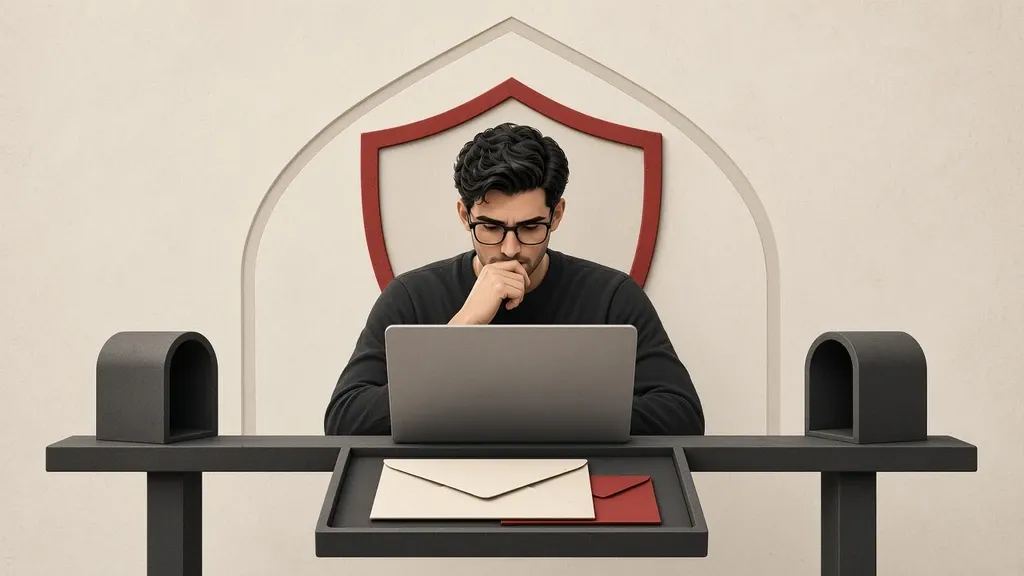
Email is often the key that recovers every other account. Protect the mailbox itself first with a unique password, two-step verification and a check of automatic forwarding. The HTTPS lock does not mean the message body is end-to-end encrypted. Anyone who reaches your inbox can usually reset passwords for social networks, shops and cloud storage too.
Set up and keep two-step verification with the two-factor authentication and recovery guide. If you see signs of a break-in, follow recovering a compromised account.
Lock down the account itself first
The password should belong only to this mailbox and should live in a password manager. Put two-step verification on an authenticator app or a security key, not on SMS alone. After you turn it on, write backup codes somewhere other than this same inbox; if you rely only on this email, you will have no path when it locks.
- Create a fresh unique password and store it in a password manager.
- Turn on two-step verification from that account’s security page.
- Review the recovery email and phone number and remove anything you do not recognize.
- Print the backup codes or keep them in an encrypted place.
- Read signed-in devices on that same security page and close an unfamiliar session.
Open forwarding and filters today
After stealing a sign-in, an attacker often adds a forwarding rule or a filter so security mail goes somewhere else or is deleted. You may see nothing for months while password resets for other accounts run through this inbox.
- In Gmail open the gear, See all settings, and read the Forwarding and POP/IMAP tab. If there is a forwarding address that is not yours, delete it.
- Open Filters and Blocked Addresses. A filter that deletes or archives mail and that you did not create is suspicious.
- On the Accounts tab, see whether you have delegated access to someone else.
- In Outlook on the web, open Mail settings and review forwarding and rules. Delete an unfamiliar rule.
- Repeat this review after every password change or after a sign-in from a new device.
Devices and connected apps
- In a Google account open Security and read Your devices and recent security activity.
- Open third-party apps with account access and cut access you no longer need.
- In a Microsoft account review the same device list and app permissions.
- Revoke an old app password if you no longer use it.
- If you see an unfamiliar app with permission to read mail, remove it and change the password.
HTTPS does not hide the message from the provider
The browser lock means the path from you to the mail server is encrypted. That is good and it should be the case: sign in only at the official web address or in the official app. The provider itself can usually process the text in readable form, unless the service offers real end-to-end encryption between sender and recipient. Search, backup and spam filtering also usually run on that readable text.
For material that should not sit with the provider, use an end-to-end messenger or a service and method that explicitly encrypt that message end to end. Encrypting an attachment and then sending the password in a separate message on the same path is almost useless; tell the password through another channel.
Gmail: several important paths
- Settings, General, Images: ask before displaying external images. A remote image can report that a message was opened.
- Confidential mode adds an expiry and can limit forwarding, but it is not end-to-end encryption and it does not stop a screenshot.
- If you are at higher risk, read Google’s Advanced Protection Program on the account security page; it wants a security key and closes some weaker access paths.
- Try search with your own filters once to see that mail is not being hidden.
Microsoft, Apple and other services
- In Outlook on the web, periodically read app permissions and forwarding as well as rules.
- In an Apple ID open Sign-In & Security, review devices, and use Hide My Email for low-trust sign-ups if you need it; Apple still ties that address to the same Apple ID.
- Mail Privacy Protection on Apple reduces remote-content loading and tracking; leave it on if you use Apple Mail.
- Every service you use has a security page and a rules or filters section; put those two on a recurring list.
Display names, CC and Reply All
- A sender display name is easy to forge; look at the real address, not only a familiar name.
- Before you reply all, read the recipient list.
- If someone should see the message quietly, use BCC, not CC, which reveals the address to everyone.
- Do not put people’s addresses in the main To field of a large group message if they do not know one another.
- Keep a phone number and home address out of the signature unless they are needed.
Suspicious mail and attachments
- Do not open a password-reset link from unexpected mail; open the site from your own bookmark.
- Do not open an office file with macros or an executable from a sender you were not expecting.
- Never send a sign-in code in reply to someone who claims to be support.
- Do not tap unsubscribe on suspicious mail; that click may confirm the address. Mark it as junk or create a filter instead.
- If you are unsure, check with the sender through another channel.
Remote images and tracking
- Turn off automatic image loading so a tracking pixel does not learn that the message was opened.
- In Gmail use the setting that asks before displaying external images.
- In Outlook and Apple Mail look at privacy options or blocking remote content.
- This does not replace care with links.
Archives and local copies
Mail lives on the server and on every device synced with IMAP. Deleting it from one phone does not necessarily delete it everywhere. A computer backup that also grabs the mailbox keeps the same text somewhere else.
- See which devices are connected to the mailbox and disconnect one you no longer use.
- For a long-term work archive, choose the storage location deliberately and encrypt it if the material is sensitive.
- Exporting a mailbox creates a large file that is no longer inside webmail’s protection; treat that file like a sensitive document.
- Review an automatic reply for travel or internal details, and turn it off when you return.
Encrypting a message when the server should not read it
Some services encrypt mail end to end between their own users and send an outside recipient a password-protected message. Classic public-key encryption is for people who can set up the tools and exchange keys correctly on both sides; that is not simple, and a mistake creates a false sense of safety. If both sides can move to an end-to-end messenger, that path is usually more practical. A “zipped and passworded” attachment only makes sense if the password arrives through another channel.
- If your service offers protected sending, do not write the password in the same message.
- Coordinate with the recipient beforehand through another method.
- Do not confuse this with the HTTPS lock.
A second account and roles
- Keep a public or newsletter inbox separate from the inbox that recovers important accounts.
- Do not open the recovery inbox in a public browser or on public devices.
- Use a less-visible address to recover sensitive accounts, with the same strong protection.
- Signing in with Google or Microsoft to other sites links this mailbox to those sites; review those permissions periodically.
When you see signs of a break-in
- From a device you trust, change the password and revoke other sessions if you can.
- Check forwarding and filters immediately.
- Disconnect connected apps.
- Harden, one by one, the accounts that use this email for recovery.
- Follow the details in the compromised-account guide.
Common mistakes
- Relying on SMS as the only two-step method for the main mailbox.
- Missing a forwarding rule that has been working for months.
- Opening a “your account is locked” link from a message.
- Sending a sensitive document unprotected just because the site shows a lock.
- Storing backup codes only inside this same inbox.
- Leaving webmail open on a shared computer.
Look at a suspicious message in its original form
A display name is easy to forge. Sometimes Reply-To points somewhere else so your reply reaches an attacker.
- In Gmail open the message, tap the three-dot menu and choose Show original.
- Read the From and Reply-To addresses. If replies go somewhere other than that organization, ignore the message.
- Preview a link by hovering on a computer or by a long press on a phone, not with an immediate click.
- Compare the domain with the official address you know from your own bookmark: an extra letter or a look-alike domain is enough to make a fake page.
- Start a sign-in from a saved bookmark or by typing the official address yourself, not from the message.
Read recent activity from the inbox itself
- In Gmail on the web, open the last account activity details at the bottom of the page and see which access types and which regions appear.
- Match an unfamiliar sign-in with the Google account device list and disconnect what is not yours.
- Take a “new sign-in from a new device” message seriously; if it was not you, change the password immediately and look at forwarding again.
- An attacker sometimes adds a filter that deletes these same security alerts, so check filters alongside that message.
Do not leave unused POP and IMAP open
- If you only use the web or the service’s official app and you have no old mail program, read Gmail’s Forwarding and POP/IMAP tab and turn off what you do not need.
- Each mail client is another copy and another way in; sign an old program on an old computer out of the account.
- Revoke that old app password on the security page so it no longer works.
- On a phone, remove the mailbox from a third-party app if you already read it in the official app.
Read the address before you send
- Autocomplete can send a sensitive message to someone else with a similar name. Look at the full address before you send.
- Do not treat recalling a message after sending as a guarantee; many services do not fully pull it back.
- Open an attachment once to see that it is the right file, then send it.
- If a document should not sit with the provider, do not send it by ordinary email.
Public computers and an official bookmark
- Bookmark the sign-in address of an important mailbox so you do not reach a fake page from a search result.
- On a public computer open a private window, sign out when you finish, and do not save the password.
- If you had to sign in on such a computer, later change the password from your own device and close sessions.
- Do not use a public computer at all for the inbox that recovers important accounts.
Which accounts depend on this mailbox
- Search the password manager to see which logins use this email.
- Keep a list of accounts that use this address for recovery so you can prioritize them if the mailbox is at risk.
- Send newsletters and low-stakes shopping to a separate inbox so the main one stays quiet and easier to watch.
- When you leave a job, remove organizational mail from a personal phone, and know that forwarding all work mail to a personal inbox may violate that organization’s policy.
Advanced Protection and a security key
For the main mailbox that the rest of your digital life recovers through, a security key is stronger than SMS. If you use Google and you face a targeted risk, read the Advanced Protection Program on the account security page: it limits sign-in to stronger methods and reduces weaker app access. Setting it up takes time, and you should have a key or a backup method beforehand, not after a lockout.
Do not use a work email to recover personal life
An organization’s administrator can usually read work mail or take over the account. If that same address recovers a social network, a bank or a personal mailbox, leaving the job or an administrative dispute reaches those accounts too.
- Put recovery for personal accounts on a personal address, not on a work or university email.
- Do not send personal newsletters and shopping to the work inbox.
- When you leave an organization, change the accounts that still depend on that address before the mailbox is closed.
- Do not leave work mail sitting on a personal phone after you leave the organization.
A shared family inbox
- One address for the whole family means everyone can reach everyone else’s password resets.
- Give each person their own mailbox with a separate password and verification.
- If you register a child with a parent’s email, do it deliberately and do not later forget which accounts remain there.
Aliases and separating newsletters
Some services let you add a tag to the first part of the address so you can tell sign-ups apart. If a shop sells that address, the tag shows the source of the leak. This does not replace a unique password.
- For low-trust sign-ups use Hide My Email or your provider’s alias addresses if you have them.
- Do not type the main recovery address into public forms.
- If your address appears in a known breach, change that service’s password and check you had not reused it elsewhere.
Certificate warnings in a mail app
- If a mail client warns about the server certificate, do not dismiss it with “continue anyway.”
- A public network and an old app can both produce that warning; move the work to a more trusted network and the official app.
- Do not turn off the warned-about encryption just so mail “just works.”
Calendar invites and shared files
- Treat an unexpected meeting invite like a message with a link; it may lead to a fake sign-in page.
- A cloud file that suddenly “was shared with you” and asks you to sign in again is suspicious.
- Sign in from inside the drive itself or from a bookmark, not from that message.
Look at the junk folder too
- From time to time scan junk for a real security message or a missing work email.
- If security messages that should arrive are missing, open filters and forwarding again.
- Move a real bank message from junk to the inbox, and do not sign in to the site from that message.
If a verification code arrives that you did not ask for
A sudden two-step prompt means someone typed the password correctly. Ignoring it is not enough.
- Sign in, change the password and revoke all other sessions if that option exists.
- Check forwarding and connected apps in the same sitting.
- If you cannot sign in, use that service’s official recovery flow from a trusted device.
- Put accounts that use this email for recovery next on your list.
Look at delegated access separately
- In Gmail open Settings, Accounts and Import, and read Grant access to your account.
- Remove someone who should no longer read the mail.
- In a work Outlook environment see whether Send on behalf or delegate access is on for someone who should no longer have it.
- After a temporary collaboration, close these access paths the same day.
Search the inbox for old attachments
A mailbox can hold documents, passports and spreadsheets for years after they are needed.
- Search for messages with attachments and review old files.
- Delete what should not remain, and empty the mail trash.
- Know that a copy may still sit on a synced device or in a backup.
- From now on, do not email an identity document if you do not need to, or delete it from your own mailbox after the recipient has it—and still assume a copy existed with them and on the server.
Create backup codes in the same session
- After you turn on two-step verification, open the backup codes or one-time codes option.
- Store the codes in a password manager or on separate paper, not in a draft in this mailbox.
- Once, check that you can find the storage place.
- If you created codes before and lost them, generate a fresh set so the old ones are revoked.
When not to send mail
- For urgent confidential coordination, an end-to-end messenger is usually more appropriate than ordinary email.
- Email fits archives, organizational contacts and formal work; even then, judge the audience and the attachment.
- Before you send, see which address you are sending from: personal, work or an alias.
- Remove extra CC recipients.
More precise Microsoft and iCloud paths
- In Outlook on the web open the gear, Mail, Forwarding, and if forwarding to an unknown address is on, turn it off and remove it.
- In the same settings, read rules one by one: moving mail to Deleted items or forwarding it outside is the most common hiding place.
- Open the Microsoft account security page separately for sign-in methods, passkeys and devices.
- On iPhone go to Settings, your name, iCloud and look at Hide My Email: review the generated addresses and turn off what you do not need.
- Review iCloud Mail’s signed-in devices under that Apple ID’s Sign-In & Security as well.
Change recovery in the right order
- Add and test the new sign-in method, then remove the old one; the reverse can lock you out.
- Do not leave an old number you no longer have as recovery.
- If you create a passkey to sign in to the mail account, do not lose the device it lives on, and keep a second method too.
- Changing a recovery email is sometimes applied after a security delay; keep both addresses reachable until the change is final.
- Remove an address or number you no longer control from recovery the same day.
- After the change, read recent security activity to confirm only you did it.
If you lose access in the middle of this change, use backup codes and that service’s official recovery flow, not someone who suddenly offers in mail or a message to help you open that same account. Real support for that service never asks you to send them a one-time sign-in code in a message.
What to do today
- Finish a unique password and non-SMS two-step verification for the main mailbox, and store backup codes outside it.
- Open automatic forwarding, filters and delegated access.
- Review devices and connected apps.
- Set external images to ask first.
- Look with your own eyes at which addresses use this email for recovery.
Related guides

Passwords
Strong passwords: create them, remember them, protect them
Use a long, unique password for each account and let a password manager keep most of them. Length matters more than extra symbols; memorize the master passphrase and your device…

Passwords
Two-factor authentication: which method, how, and a recovery plan
Two-factor authentication protects an account even if the password leaks, but methods are not equal. Prefer an authenticator app or a passkey over SMS for important accounts, and…
Passwords
Password managers: choosing one, backups and recovery
A password manager creates a different password for each account and keeps them in an encrypted vault. Whether you choose a local file or a syncing service depends on your devices…
Assess and plan
Multiple online identities: separation, recovery and anonymity limits
Separating online identities works only if you also separate recovery email, phone numbers, devices and payments. Changing a display name or opening a new browser profile does not…

Files and information
Backups and recovery: copies you can actually restore
A backup counts only if you can restore it without the lost device or account. Syncing is not enough; keep extra copies of what matters, store at least one copy somewhere else,…
Communication
Suspected account compromise: contain, recover and revoke persistent access
If an account may have been taken over, change the password from a device you trust, sign out other sessions, and review recovery methods and forwarding rules. Changing the…