
Safer browsing: destinations, permissions and privacy boundaries
Safer browsing means an updated browser, checking where a link really goes, and giving sites fewer permissions. The HTTPS lock only encrypts the path to that address; it does not, by itself, prove the site is trustworthy.
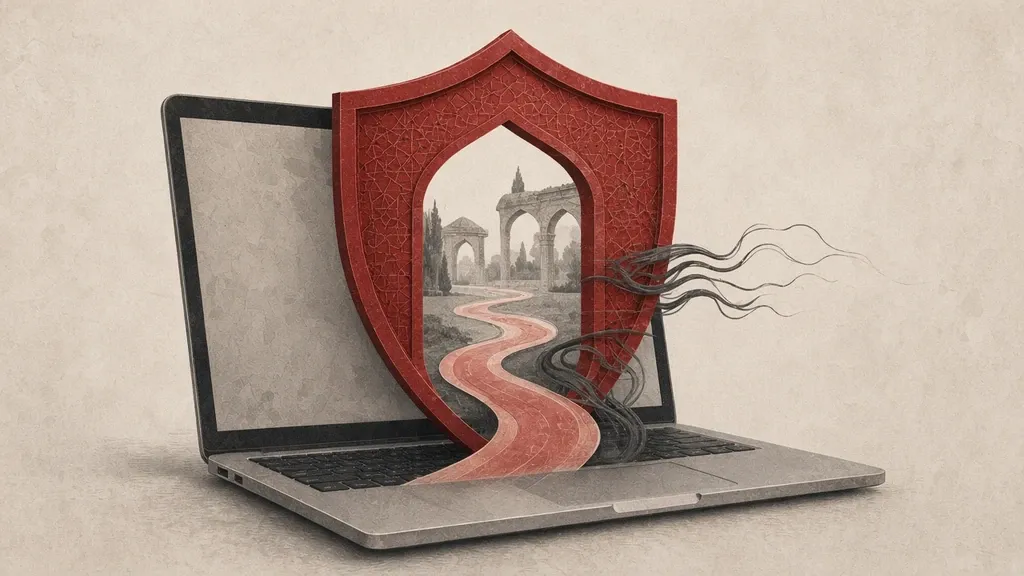
Safer browsing means an up-to-date browser, checking where a link really goes, and giving sites fewer permissions. The lock next to the address only encrypts the connection to the address you see in the bar. It does not say that address belongs to the organisation you have in mind, or that the page is harmless. A fake page can show a lock too.
This guide covers everyday browsing habits: reading addresses, permissions, extensions, downloads, private windows, and using a network where part of the web is blocked. If you followed a deceptive link or opened a file, continue in malware and phishing. The limits of staying anonymous are covered separately in communication anonymity limits, and choosing a path around restrictions is in choosing circumvention routes.
The lock next to the address does not mean the site is trustworthy
HTTPS means data between you and that host is harder to read for someone who is only listening on the network. That is useful when you type a password on a real bank page. If the domain itself is fake, though, the encryption only protects your connection to the same deceiver. An old green colour or a lock icon is not a substitute for reading the domain name.
Take certificate warnings seriously as well. If the browser says the connection is not private or the certificate is invalid, the cause may be a network in the middle, a wrong clock on the device, or a site that is badly configured. In a café or on unknown Wi-Fi, ignoring that warning to reach a sign-in page is risky. If the site matters to you, try another network or come back later; do not make “continue anyway” a habit.
See where a link goes before you open it
- On a computer, hover over the link and read the address in the status bar.
- On a phone, press and hold the link until a preview of the destination appears.
- Read the main part of the domain, not the long text after the slash and not a brand name that appears only inside the path.
- Do not open a shortened link from an unconfirmed sender. If you must, preview the destination first or ask the sender for the full address.
- Open important sites such as mail and banking from your own bookmark or by typing the address, not from the first result of a rushed search and not from a text message.
Some pages redirect several times after one click so the origin is lost. If you are suddenly pulled to a download or sign-in page you were not expecting, close that tab and go the familiar way.
Keep the browser itself current and simple
An old browser has known holes, just like an old operating system. Get updates from the program itself, not from a file on an unknown site with a “download Chrome” button.
- In Chrome, go to Settings > About Chrome and let it check the version.
- In Firefox, go to Settings > General and look at the update section.
- In Safari on iPhone, the browser updates with the system: Settings > General > Software Update.
- On a Mac, Safari updates usually arrive with system updates.
- In Edge, go to Settings > About Microsoft Edge.
Several abandoned browsers on one device do not help. Keep one or two that their makers still update, and remove the rest if you do not use them, so forgotten extensions and sync accounts are not left behind.
Keep permissions few
A site usually does not need your precise location, camera, microphone or notifications to show an article. Every permission you grant can later be used in the background as well.
- In Chrome, go to Settings > Privacy and security > Site settings.
- Set camera, microphone, location and notifications so the browser asks each time, or at least review the allow-list site by site.
- Remove sites you no longer need from the allow-list.
- In Firefox, do the same from Settings > Privacy & Security and then permissions.
- On iPhone, go to Settings > Safari and review camera, microphone and location under website settings. For Chrome or another browser on iPhone, review permissions in that app’s settings.
Do not leave clipboard access, motion sensors or pop-ups on “always allow” for unknown sites either.
Notifications, pop-ups and redirects
After one mistaken click, some sites ask for notification permission and then send a stream of fake virus alerts. Others open window after window.
- Do not allow notifications from a site you have only just seen.
- If nuisance notifications start, remove that permission in site settings; do not tap the notification itself for a “system cleanup”.
- Leave the browser’s own pop-up blocker on.
- Fully quit tabs that keep opening themselves, rather than fighting them one by one.
Treat extensions like apps
An extension sits close to what you read and sometimes to passwords you type. A free add-on with a high rating is not automatically safe, especially if its access is “read and change data on all sites” and you installed it for a small task.
- Install only from that browser’s official store.
- Keep the number small. For each extension, ask yourself whether you actually used it last week.
- Turn off or remove an extension you no longer need, instead of leaving it running in the background for years.
- If the browser’s behaviour suddenly changes, disable extensions one by one and see which one is responsible.
- Do not install an unknown toolbar, screen recorder or “VPN inside the browser” from an advertisement.
Download from the official destination
- Get desktop software from the maker’s site or the official store for that system, not from a button in the middle of an article that presents itself as a search result.
- Read the file name before you open it and look at the real extension.
- If the browser treated a file as harmless but you were not expecting that download, do not run it.
- Clear the downloads folder from time to time so an old file is not opened again by mistake.
Saved passwords and autofill
Saving passwords in the browser is, for many people, better than writing the same password on a note beside the screen, provided the device itself has a lock and important passwords are not reused. A separate password manager usually gives better control and a cleaner export. What is dangerous is thoughtless autofill on a page that only looks like the real site.
- Read the domain once more before you accept a save.
- Turn off autofill for card details and your home address on a shared browser.
- If you hand the device to someone else, sign out of the browser account first or use a separate profile.
What a private window does and does not do
A private or incognito window usually does not keep that session’s history and cookies on the same device after you close it. That is useful on a shared computer. But:
- It does not hide you from the network, the site, or, in many cases, the account you signed into inside that window.
- Extensions you have allowed may still see what you do.
- A file you download stays on disk unless you delete it yourself.
- A workplace or internet provider can still see which domains you visited.
If your goal is to leave fewer traces on someone else’s device, a private window is the right tool. If your goal is to stay hidden from a network or a service, you need the guides on anonymity limits and choosing a route, not only a darkened window.
Cookies, site data and tracking
Cookies and local data help you stay signed in and keep site settings. The same mechanism can follow you across several sites. Modern browsers limit some cross-site tracking, but that limit is not complete or permanent.
- In Chrome, open Privacy and security and look at the protection level; do not turn something off only because of its name if you do not understand it.
- If you work on a shared device, clear that service’s site data after you finish, or use a private window.
- Clearing every cookie every day is unnecessary for most people and forces you to sign in everywhere again; clear with a purpose.
- In Firefox, try a stricter tracking-protection mode if it still works with the sites you need, and if something breaks, except that site rather than turning all protection off.
Separate profiles for work and personal use
Chrome, Edge and Firefox can have several profiles, each with its own history, extensions and accounts. That stops a work extension mixing with personal sign-ins, and it stops one browser account from syncing everything onto a new device.
- Create one profile for work and one for personal use.
- Install extensions only in the profile that needs them.
- Keep bookmarks for banking and personal mail in the personal profile.
- Think twice before syncing a work profile onto a personal phone, or the other way around.
Browsing on public Wi-Fi
In an airport, hotel or café, the network is not yours. HTTPS still helps on a correctly configured page, but take certificate warnings more seriously there, do not type anything into an unlocked sign-in page, and postpone sensitive tasks to another network if you can. Do not confuse the real guest Wi-Fi portal with a phishing page that copies the network name; ask the host for the network name.
When the internet is filtered
On a network where some sites are blocked, it is tempting to install the first circumvention tool or the first “proxy inside the browser”. That hurry is a common way to land on an untrustworthy extension or app. Choose a route deliberately, using the relevant guide, not from an advert above an error page.
Getting around a restriction also does not make you anonymous. You may reach a site, but that site and that route can still tie you to an account or an address. If the issue is hiding who you are, do not confuse that with a page simply opening, and read the anonymity-limits guide separately.
Search and fake results
The first search result is not always the official site. Adverts appear at the top of the list and sometimes their address imitates a brand. For software, support and account sign-in, open your own bookmark or type the site name directly instead of hitting the first link. If you need a support number, take it from your own device or card, not from a box blinking in the middle of an unknown page.
Browser sync
When you sign into the browser with a Google, Firefox or Apple account, history, bookmarks and sometimes passwords go to other devices. That is convenient, and it also means anyone who reaches that account is close to the same data. Lock the sync account like a primary account, and if you sell or lose a device, remove it from the account’s device list. Sync is not a deliberate backup either; a deletion on one device may follow you to the others.
Do not turn off the browser’s safe browsing
- In Chrome, go to Settings > Privacy and security > Security and leave Safe Browsing at least on standard. Enhanced mode warns more often and may block some pages more strictly.
- In Edge, look at the similar protection under privacy and security settings.
- In Firefox, leave deceptive-site and malware warnings on in Privacy & Security.
- If a warning appears, do not bypass it “just to see the page” unless you already know the destination another way.
Safari on iPhone and Mac
- On iPhone, open Settings > Safari.
- Block pop-ups and review prevent cross-site tracking.
- Cut down automatic downloads and website permissions to match how you actually browse.
- On a Mac, open Safari settings and the Privacy section, and apply the same logic: less tracking, fewer extensions, more warnings.
After you land on a suspicious site
- Close the tab and do not go back in through the same link.
- If you typed something or a file was downloaded, use the malware and phishing guide and, if needed, account recovery.
- Remove notification or other browser permission for that site at once.
- If that page offered an extension, do not install it.
Common mistakes
- Trusting the address-bar lock instead of reading the domain.
- Ignoring a certificate warning on hotel Wi-Fi.
- Installing an extension from an advert in order to dismiss a notification.
- Downloading software from a button in the middle of an article.
- Treating a private window as the same thing as hiding on the network.
- Saving every password in a browser on a device with no screen lock.
Open the padlock to see details for that tab
In most browsers, clicking the lock or the site name beside the address opens a small sheet: whether the connection is secure, which permissions have been granted, and whether the site can set cookies. Open that sheet once before you type a password. If camera or notification permission was already on and you do not remember granting it, turn it off there.
Read the subdomain there or in the address itself as well. A page riding on “login” under someone else’s domain does not belong to that brand. The brand should appear in the main part of the domain, not only at the start of a long name.
An in-app link is not the same as a real browser
Many messengers and social apps open links inside themselves. The address bar there is shorter or missing, and your main browser’s extensions and settings do not apply. For signing in or paying, open the link in your main browser: most in-app tabs have an “open in browser” option in the menu. If not, copy the address and paste it yourself into the browser you know.
That has two benefits: you see the destination more clearly, and you later manage history and permissions in the same place you do the rest of your web work.
Get used to how a domain is written
Common tricks rely on a domain that looks almost right: an extra letter, a digit in place of a letter, or a suffix you did not expect. Rushing in the search bar makes this worse; if you search for the service name instead of typing the address, you may hit an advert.
- Create bookmarks for the sites you sign into every day and use them.
- If you type an address by hand, look at the domain in the bar again after you arrive.
- Non-Latin characters in a domain can look like familiar letters. If something is only “almost right”, go from your own bookmark.
- Do not take a file from a page that presents itself as a “lite version” or “fast download” of the same program.
PDF files and in-browser previews
Opening a PDF inside the browser is usually less risky for a familiar document than running an installer, but the source still matters. If you were not expecting that file, you do not need to open the preview either. If the browser offers to save it, read the name and extension; some links send an executable instead of a document. Office files with active content are covered in the malware guide in this set. Here it is enough to remember that “it opened inside the browser” does not mean the content is harmless.
Payments and cards saved in the browser
Saving a card number speeds up checkout and is dangerous on a shared device. If you use this feature:
- Take the device lock seriously; without it, a saved card is a card left on the table.
- Turn off payment autofill on a family or work computer.
- Before you confirm a purchase, read the domain and the amount on that page, not only in a small saved prompt.
- If you remove a card from the browser, also check any shop account that may have stored it separately.
HTTPS-only mode and mixed content
Some browsers can try to open every page over an encrypted connection. That helps you avoid falling onto an unencrypted version of a site. If you turn it on and a site breaks, except that site deliberately. A page with a lock that still loads some parts over an open connection may show a mixed-content warning; that kind of page is a poor place to type a password. Reopen the site later or go from its official bookmark.
A shared family computer
If several people browse with one profile, history, saved bookmarks and open account sessions are shared. For a child or a guest, it is better to create a separate profile or a separate user on the system itself, rather than treating “sign out of Gmail” as enough. After someone else has used your device, glance at newly installed extensions and newly granted permissions.
When the browser turns a site into an app
Installing a site as an app or a full-screen shortcut hides the address bar. That is fine for everyday reading; for banking and mail it is better to stay in a normal browser window so the domain stays visible. If you no longer trust a shortcut, remove it from the home screen and go from an ordinary bookmark next time.
History and typed addresses
The address bar usually suggests items from history and earlier searches. That is handy, and on a shared device it is a disclosure. If you work on someone else’s computer, or you hand a device in for repair, clear history and form data or start in a private window. On your own device, wiping history obsessively does not add much security; what matters is that someone with physical access to an unlocked device does not see those traces.
Do not confuse the bar’s search suggestion with an address either. Pressing Enter on a phrase may take you to a search engine, not to the site you thought would open directly. If you need that exact domain, type the full address or use a bookmark.
Do not change settings from a suspicious help page
Some pages ask you to change browser settings to “watch a video” or “turn on security”: disable a blocker, allow all pop-ups, or install an extension with full access. If that instruction comes from a site you have only just reached, it is a good sign to stop. Change security settings only when you understand why, and when the source is the browser’s own settings page, not a box in the middle of a site.
What to do from today
- Update the browser from its official path.
- Review and reduce location, camera, microphone and notification permissions.
- Remove extensions you do not need.
- Make separate bookmarks for important sign-in sites and use them.
- Leave safe browsing on and do not bypass certificate warnings.
Related guides

Files and information
Backups and recovery: copies you can actually restore
A backup counts only if you can restore it without the lost device or account. Syncing is not enough; keep extra copies of what matters, store at least one copy somewhere else,…

Phones and computers
Malware and phishing: prevention and proportionate response
Phishing tries to trick you; malware is unwanted software. They are related but not the same. Pause before you act on urgent messages, keep software updated from official sources,…

Passwords
Strong passwords: create them, remember them, protect them
Use a long, unique password for each account and let a password manager keep most of them. Length matters more than extra symbols; memorize the master passphrase and your device…

Passwords
Two-factor authentication: which method, how, and a recovery plan
Two-factor authentication protects an account even if the password leaks, but methods are not equal. Prefer an authenticator app or a passkey over SMS for important accounts, and…
Passwords
Password managers: choosing one, backups and recovery
A password manager creates a different password for each account and keeps them in an encrypted vault. Whether you choose a local file or a syncing service depends on your devices…