
Password managers: choosing one, backups and recovery
A password manager creates a different password for each account and keeps them in an encrypted vault. Whether you choose a local file or a syncing service depends on your devices and how much you trust a provider; syncing is not a backup, and the master password must be stored separately.
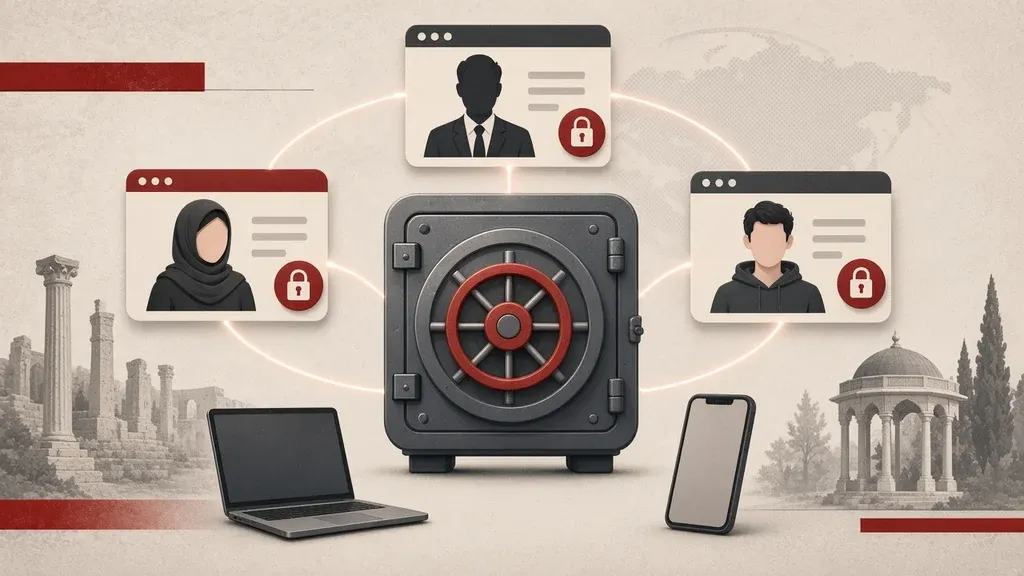
A password manager creates a separate, long password for each account and keeps them in an encrypted vault. You remember one master passphrase; the software fills in the rest when you sign in. That makes guessing harder and stops you from reusing the same password everywhere. If one site is breached, the rest of your accounts do not open with it.
You do not have to start with the most complex tool. What matters is a vault you control, that you can back up, and that you can reach on the devices you use every day. How to invent the passwords themselves is covered in the guide to strong passwords; this page is about choosing, setting up and looking after a manager.
What a password manager actually does
The tool has three main jobs: generating a new password, storing it next to the site or app name, and filling it when you sign in. Many also keep passkeys, secure notes, card details and backup codes for two-step verification. Some sync the vault between your phone and computer; others keep a single local file on one device.
What it will not do is just as important. It will not remember the master passphrase for you. If you forget that phrase and have no recovery key, the vault usually cannot be opened. And if someone gets both the master phrase and the file or the synced account, they get every password. That is why the device lock, two-step verification on the manager itself, and a separate backup all matter together.
Three common models: built-in, synced, or a local file
Almost everyone already has a manager within reach. Android and Chrome ship Google Password Manager, iPhone and Mac have the Passwords app and iCloud Keychain, and Windows and Edge store passwords of their own. Firefox has a separate password manager. Alongside those are independent tools such as Bitwarden, 1Password or KeePassXC that are not tied to a single platform company.
- The manager built into the operating system or browser: it is easy to turn on and uses an account you already have. You also become more dependent on that company. If you live inside one ecosystem, such as only iPhone and Mac, this is often enough.
- An independent synced service: the vault is available on several devices and systems. You can usually add separate two-step verification, controlled sharing and a standard export. You still need to look at that service’s policies and at how its own account is locked.
- A local file such as KeePassXC: the vault is an encrypted file whose location you choose. It does not sync unless you copy the file on purpose. You get more control, and you also take on backing it up and getting it onto other devices.
Syncing is not the same as a backup. If the passwords live only inside one cloud account and that account is lost, you may be stuck. The guide to backups you can restore covers that separately.
What to look at when you choose
Answer these questions for yourself instead of starting from a brand name:
- On which devices do you need the passwords? Only a phone, or a phone and a laptop running two different systems?
- Do you want the vault to reach the internet, or would you rather keep a file only in your possession?
- Does someone else, such as a colleague or family member, need access to some of the passwords?
- How important is export to a standard file? That export is what lets you change tools later.
- Does the tool support passkeys, a generator, and storage for backup codes?
For most people, either the manager that comes with the ecosystem they already use, or an independent open tool such as Bitwarden, is the right size. A local file is a better fit when you do not want cloud sync and you are willing to maintain the file. Avoid unknown tools advertised in a chat as “the best free password manager”.
Set up Google Password Manager
If you are signed in to Android or Chrome with a Google account, many passwords may already be stored there. It is worth looking once at what is saved and how it is locked.
On an Android phone:
- Open the Settings app.
- Go to Google > All services.
- Tap Password Manager. In Chrome the alternative path is the more menu > Settings > Autofill and passwords > Google Password Manager.
- Review the list of sites. Delete entries you no longer want, and change any password the tool flags as reused or weak.
- In the settings on that same screen, review saving and autofill so sites do not store things without you, while you still do not have to type everything again.
You can open the same vault from a computer:
- Sign in to your Google account and open Password Manager.
- Look at the security or password checkup; if a password has appeared in a known breach, you will usually see a warning there.
- For the Google account itself, also turn on two-step verification so signing in to the vault is harder for someone else.
Set up Passwords on iPhone, iPad and Mac
On recent Apple systems, passwords live in a separate app called Passwords and move between devices on the same account through iCloud Keychain.
On iPhone or iPad:
- Open the Passwords app. If you do not see it, go to Settings > Passwords.
- Unlock with Face ID, Touch ID or the device passcode.
- To sync between devices, go to Settings > [your name] > iCloud and make sure Passwords and Keychain is on.
- In the Passwords app, create a new password or edit a saved one. Passkeys usually appear in the same app.
- If you also use Windows, Keychain sync will not cover that computer by itself; either use an independent manager as well, or accept that some passwords stay inside Apple’s world.
On a Mac:
- Open the Passwords app from Launchpad or the Applications folder.
- Unlock with Touch ID or the Mac login password.
- Check Keychain under System Settings > [your name] > iCloud.
Set up an independent manager, using Bitwarden as an example
Independent tools help when your devices are mixed or you do not want every password only inside a Google or Apple account. Bitwarden is a useful example because the official app is in the main stores and you can keep the vault on their servers or, if you have the skill, on your own. The overall steps are similar in 1Password or comparable tools: create an account, choose a master password, install on every device, then import what you already have.
- Install the official app from Google Play, the App Store or the developer’s own site, not from a file that arrived in a message.
- Create a new account. Choose a long master passphrase; this is not a password you can afford to forget. Several unrelated words that only you will remember beat a short word dressed up with a few symbols.
- If the tool shows a recovery key or account recovery hint, save it at once somewhere separate and offline — not inside this vault and not in an unlocked photo album.
- Turn on two-step verification for the password-manager account itself. An authenticator app or a security key is usually stronger than SMS alone.
- Install the official browser extension on the computer you work on, and leave autofill on only for sites you choose.
- Install the same app on your phone and sign in with the same account so sync can start.
If you want a local file instead of a cloud service, KeePassXC on a computer plus a compatible app on the phone is a common pair. In that model:
- Create a new database and store the file somewhere you will actually back up.
- Choose a strong passphrase for the file. Some people also add a separate key file; if you do, do not keep that key file in the same place as the database.
- To get the database onto a phone, use a folder-sync method you understand or copy the file by hand. Whatever path you choose should leave the file encryption intact.
Create a new password and save an existing sign-in
From now on, when you create an account or change a password, let the manager’s generator build it. Prefer length; on most sites a long random string is better than a word you built from your usual pattern.
- On the account-creation or change-password page, open the manager and choose generate or create a password.
- Set the length to whatever the site allows; if there is no limit, err toward longer.
- Save the generated password and check that the site or app name is stored correctly so autofill does not go to the wrong place later.
- Sign out once and sign back in with autofill to confirm the save worked.
Move passwords that still live in your head or on scattered paper into the vault gradually. You do not have to change everything in one night. Bring the main accounts first: email, app stores, banking, social networks and the password manager itself. Then, each time you sign in to a site, change the password if it is weak or reused and save the new one.
How to keep the master passphrase
The master phrase is the only key that opens the vault. Do not store it inside the manager. Do not write it on an unlocked phone either. Two practical steps are usually enough:
- Build a phrase you can memorize with practice; several separate words that are not a common sentence in your life.
- Keep a paper or offline copy somewhere only you, or a person you trust for emergencies, can reach.
If the tool gives a recovery key, keep it apart from the master phrase. Anyone who finds both in the same photo no longer needs the lock. Take the phone and computer screen locks seriously as well; an unlocked device with an open vault is enough.
Back up, export and change tools
Keep at least one fresh export of the vault that does not depend on that same service.
- In the manager’s settings, find the export or download option.
- If you can get an encrypted export, prefer that. Use a plain-text export only for a short transfer, then delete it.
- Put the file somewhere other than the same device: a separate disk, another computer, or an offline encrypted store.
- Refresh the export every so often after you have changed important passwords.
If you later change tools, import that export into the new one and, once sign-ins work, empty or close the old vault. Keep the old master password strong until you are sure nothing important is left behind.
Sharing a password and emergency access
Sending a password in ordinary chat or email means that password now exists in extra places. If you must share one, use the manager’s own sharing feature, not a messenger. When the work is done, remove the access and change the password if needed.
Some tools offer emergency access: you name someone in advance who can reach the vault after a delay if you are unavailable. That helps a family member or a trusted colleague, but you must choose that person carefully and set a delay long enough that you can refuse an unexpected request.
If a device is lost or you distrust the vault
- From another device you trust, sign in to the password-manager account and close open sessions or connected devices.
- If you can, change the master passphrase and review two-step verification.
- Lock or erase the lost device with its find-my-device service.
- Separately sign in to highly sensitive accounts such as email and banking and change those passwords, especially if the device had no screen lock or the vault was left unlocked.
- Treat any plain-text exports that lived on that device as no longer safe.
Common mistakes that are not worth it
- A short password for the manager itself and very complex ones for everything else. If the front door is weak, the rest does not matter.
- Turning off two-step verification on the manager account for convenience.
- Installing an unofficial add-on or app that merely looks like the real tool.
- Storing work passwords in a personal vault mixed with unrelated software, or the other way around.
- Relying on autofill on a shared device that has no lock.
Other browsers: Firefox and Edge
If you spend most of your time in Firefox and do not want passwords going to a Google or Apple account, Firefox’s own password manager is a separate option. On a computer:
- Open the Firefox menu and go to Settings > Privacy & Security.
- Under logins and passwords, leave Ask to save passwords on.
- Click Saved passwords to open the about:logins list.
- To reach the same list on another device, sign in to a Firefox account in settings and turn on password sync.
- Set a primary password for Firefox so someone who sits down at an unlocked session cannot open every login with one click.
In Edge the path is similar:
- Go to Settings > Profiles > Passwords.
- Review the list and delete duplicates or entries saved for the wrong site.
- If you sync with a Microsoft account, protect that account with two-step verification; it is the key to this list.
Do not leave three different managers each holding a slice of your logins until you no longer remember where anything lives. Pick one primary source and keep the others only until the move is finished.
Import passwords from one tool into another
A rushed move can leave passwords sitting as a plain file on the desktop. Do this slowly:
- Export from the current tool. If you can choose an encrypted file or a CSV, take the encrypted one. If you only get a CSV, delete it from Downloads and the trash after you import.
- Keep the file on the same device that has both programs; do not email it to yourself.
- In the new tool, open import and select the file.
- After import, try a few main accounts by hand to see that the site address and username came through.
- If duplicates appeared, merge or delete the old copies so autofill does not send a stale password.
- When you are confident, delete the temporary export and, if you no longer need the old tool, sign out its other devices.
Passkeys alongside the password manager
A passkey signs you in with the device lock or a fingerprint instead of typing a password. A typical fake page has a harder time stealing that. Newer managers store passkeys too, so you can still sign in if you change phones.
- In your Google account, Apple account or independent manager, open the passkeys section and see which services are registered.
- When a site offers to create a passkey, save it in the same manager as the rest of your logins, not on a one-off device you may not have tomorrow.
- Keep at least one second way in: a passkey on another device, or a stored password plus two-step verification.
A passkey does not replace the manager’s master passphrase. That phrase is still the door to the vault.
A periodic review of the vault
A vault that is never reviewed fills up with dead logins, reused passwords and old addresses. Every few months:
- Open the security report or password checkup in the same tool.
- Change any password that has appeared in a known breach in that same sitting, instead of only dismissing the warning.
- Delete logins for sites and apps you no longer use.
- If one service has several copies with different passwords, keep the correct one and delete the rest so autofill does not send an old secret.
- Check that autofill on a shared device or a work computer has not stored something that should not be there.
Using a shared or public device
On a café computer, a borrowed system or someone else’s phone, do not sign in to your main vault. Even signing out does not always close the session completely.
- If you must open a particular account, use a temporary sign-in without saving, then close that session.
- Do not turn on autofill on that device.
- When you finish, sign out and clear the history if you can.
- If you signed in to the vault by mistake, later revoke sessions from your own device and change the master phrase if you have any doubt.
When a site will not accept a long password or autofill
Some older sites cap the length, some demand a particular symbol, and some break autofill. You do not have to abandon the manager; you just handle the exception on purpose.
- First match the generator’s length and character set to that site’s rules, then save the password.
- If autofill cannot find the field, copy the password from the vault. Do not leave it on the clipboard; most managers can clear the clipboard automatically, and that setting is worth turning on.
- If a site forces a password change every few months, use the generator again rather than a repeated pattern such as a season and a year.
- Store the real sign-in address in the vault record so you are not sent to a look-alike page next time.
If a site only accepts a four-digit PIN, at least do not reuse that PIN anywhere else, and turn on two-step verification if the service offers it.
Checklist
- Choose one place for all passwords: the system manager, an independent service, or a local file.
- Create a long master passphrase and keep an offline copy of it or of the recovery key.
- Turn on two-step verification for the password manager itself.
- Bring your main accounts into the vault and change any reused passwords among them.
- Install the official app or extension on all of your own devices.
- Take a fresh export and store it apart from that same device.
- Set phone and computer screen locks so an open vault is not left on the table.
Related guides

Passwords
Strong passwords: create them, remember them, protect them
Use a long, unique password for each account and let a password manager keep most of them. Length matters more than extra symbols; memorize the master passphrase and your device…

Passwords
Two-factor authentication: which method, how, and a recovery plan
Two-factor authentication protects an account even if the password leaks, but methods are not equal. Prefer an authenticator app or a passkey over SMS for important accounts, and…
Passwords
Password and second-factor tools: selection and recovery
A password manager and a second-factor tool do different jobs. Set both up with a tested recovery path, and at higher risk do not keep one-time codes only inside the same password…