
Strong passwords: create them, remember them, protect them
Use a long, unique password for each account and let a password manager keep most of them. Length matters more than extra symbols; memorize the master passphrase and your device lock, and turn on a passkey where you can.

A password is still the lock on most accounts. If it is short or reused, one leaked site can open the rest. You do not have to memorize dozens of strange strings. You can leave most passwords to a password manager and keep only a few memorable ones for the locks you type by hand every day.
Current advice differs from what many people heard for years. Length usually matters more than forced punctuation, periodic changes without a reason push people toward a repeated pattern, and recovery questions such as a school or pet name are often weaker than the password itself. This guide covers how to build passwords and which habits are no longer worth it.
Why every account needs its own password
Sites and apps lose passwords through breaches, mistakes or phishing. Attackers then try the same list on other services. If email, social media and a shop all share one password, a small leak becomes several accounts. Separate passwords break that chain.
Near-copies have the same problem: if someone knows the base and you only change the last digit, the rest are easy to guess. Each sign-in should be an independent string from a generator, not a relative of the previous password.
Length matters more than looking complicated
For years people were told a password must mix cases, numbers and symbols and be changed every few months. Newer guidance shows that pressure often produces short, predictable strings. A longer passphrase of unrelated words, or a long random string from a manager, usually stands up better to guessing and offline cracking.
If a site still demands those busy rules, follow them — but do not stop there. Set the generator to meet the site’s limits while remaining as long as it allows. Add a symbol when the site requires it or when the generator includes one at random, not to dress up a short word.
- For a password the manager will store, prefer long random strings.
- For a password you must type from memory, several separate words beat one word with two symbols.
- Do not put information from your profile or documents inside a password: a birthday, an ID number, a child’s name, a favourite team.
Passphrases: when you have to remember something
A passphrase is several words that do not form a usual sentence in your life. It suits a manager’s master secret, a computer login, or a disk-encryption password — the ones autofill cannot always reach.
- Pick four to six words that would not normally sit together.
- Avoid famous verses, proverbs, team slogans or lines that search engines know well.
- You can put an uncommon number or symbol between some words, but do not turn that into the same pattern for every phrase.
- Practice the phrase for the first few days so your fingers learn it.
- Keep a paper copy in a safe place until it has settled in memory.
Do not build the example with your real words here and then use that same phrase. Anything that has appeared in a guide or a tutorial video is no longer yours alone.
What you should never use as a password
- A single word with a number at the end, such as a name plus a year.
- Keyboard rows such as asdf or 123456.
- Passwords that have shown up again and again in public breaches.
- The same password on email and everything else.
- A password on a sticker under the laptop or in an unlocked note on the phone.
A short device PIN has the same weakness in miniature if it is a birthday or four repeated digits. Use a separate, hard-to-guess PIN or password for the phone lock and the SIM.
Create a new password with a password manager
For almost every new account, the manager’s generator is the best choice. You do not need to see the string and memorize it.
- On the create-account or change-password page, open the manager.
- Choose the option to generate a password.
- Raise the length as far as the site allows.
- If the site bans certain letters or symbols, apply the same limit in the generator.
- Save it, sign out once, and sign back in with autofill to confirm the save worked.
If you do not have a manager yet, set that up first and only then start changing reused passwords. Changing them with nowhere to store the new ones just sends you back to scattered notes.
If you have to build a password without a manager
Sometimes you are on a device that cannot reach the vault, or a service will not accept autofill. Even then, do not fall back on a family pattern.
- Pick fresh words, or use a method you have already practiced, such as dice and a word list.
- Write the result down in a safe place in that same sitting; do not trust short-term memory.
- As soon as you are back on your own device, move it into the vault and destroy the temporary paper or file it in its proper place.
- If you said the password out loud or sent it to someone, change it later.
Passwords you must know by heart
Not everything can go through autofill. At least these you should be able to type yourself: the phone and computer lock, the manager’s master passphrase, and any disk or folder encryption password you use. Do not make them short or similar. If the phone lock and the manager secret are the same, a stolen unlocked phone is a key to every account.
- Use a long PIN or a password on the device, not a simple pattern on the glass.
- Make the manager passphrase separate and longer.
- Do not write them together on one highly detailed sheet unless that sheet lives somewhere truly protected.
Security questions, SMS codes and recovery
Many services still ask for a first teacher or a birth city. Those answers are often public. If you must pick a question:
- Instead of the real answer, invent a long random one and store it in the password manager.
- If you can skip the question and use a well-protected recovery email or a passkey, prefer that.
- The recovery email needs its own unique password and two-step verification; otherwise the backup door is weaker than the front door.
Account recovery codes are spare keys. Do not leave them in the gallery or a saved chat. They belong in the manager’s secure notes or on offline paper.
When you should change a password
Changing every month with no sign of trouble usually does not help and pushes people to add a number to the old password. Change it when the reason is clear:
- The service has announced a breach or a suspicious sign-in.
- You typed the password on a fake page or sent it to someone.
- An unlocked device was lost with that account still signed in.
- A colleague or anyone else who knew the password should no longer have access.
- The current password is short, reused, or built from personal details.
When you change it, take the new one from the generator, not from the old one. If the account has two-step verification, review recovery methods in the same sitting.
Writing a password on paper is not unprofessional
For a master phrase or a recovery key, a paper kept in a protected place at home is often safer than a note on an unlocked phone or an email to yourself. The paper should not be labelled “my passwords” on the table, and it should not sit next to an unlocked phone.
- Write down only the secrets autofill cannot replace.
- Keep the paper in a drawer or folder a casual guest will not open.
- If someone who lives with you should not reach the accounts, choose the hiding place with that risk in mind.
- Once you know the phrase by heart, decide whether the paper stays or goes; either choice is better than a forgotten copy in a bag pocket.
How to tell whether a password has leaked
The main password managers, and Google or Apple accounts themselves, usually warn you when a password has appeared in a known breach. Do not only dismiss the warning: change that password, and if it was reused, change every place that had the same one.
- In Google Password Manager, open the password checkup.
- In Apple’s Passwords app, look at the security warnings.
- In an independent tool, run the security report or exposed-password check.
- If a warning appears, change that account first and then any other account that used the same password.
Public sites that ask you to type your real password to “check for leaks” are not a safe place to do that. Rely on the manager or the service itself.
Common mistakes
- Building one good password and using it everywhere.
- Storing passwords only in a messenger or in email to yourself.
- Saying a password out loud in a shared space or reading it to a fake support call.
- Letting a browser save a password on a computer that is not yours.
- Changing a password after a leak to one that differs by a single symbol.
Harden email and recovery accounts first
Most services fall back to an email address or a phone number if you forget the password. If that mailbox itself uses a reused password and has no two-step verification, hardening everything else does little. The right order is to fix the recovery path first, then the accounts that depend on it.
- Identify the mailbox you use to sign in and recover other accounts.
- Give it a unique password and store that in the manager.
- Turn on two-step verification there and keep the backup codes separately.
- Then move on to app stores, social networks, banking and work tools.
- In each one, check that the recovery email is this hardened account, not an old address you can no longer open.
Take the recovery phone number seriously too. If you depend on SMS alone, a SIM swap can become a way in. It is fine to have a number on file, but it should not be the only second factor.
Treat passwords saved in the browser with open eyes
A browser stores passwords for convenience and can act as a manager. Trouble starts when several browsers each hold a different list, or when someone else can open the same profile.
- In Chrome, go to Settings > Autofill and passwords > Google Password Manager and see what is stored.
- In Firefox the path is Settings > Privacy & Security > Saved passwords.
- Do the same review in Safari or Apple’s Passwords app.
- If you have chosen one primary manager, move the scattered passwords there and turn off saving in extra browsers so the list does not split again.
- On a shared computer, leave browser password saving off.
Your surroundings and being watched while you type
Many good passwords are lost not to cracking but to a look over the shoulder or a desk camera. In a café, while travelling or in a busy workplace:
- If you can, use autofill or a passkey instead of typing, so your fingers do not give the pattern away.
- Hold an on-screen keyboard so its reflection and the person next to you see less of it.
- Enter the master passphrase in public only when you have no other choice.
- After typing on someone else’s device, remember to sign out.
Workplace policy and personal passwords
Some organizations still require a change every few weeks and busy composition rules. Follow that network’s policy, but do not make your personal password resemble your work one. If the organization provides a work password manager, do not put personal logins in it unless that tool is meant for that and you understand the policy.
Do not send a work password to yourself in a personal chat, and do not share it with a colleague in an ordinary conversation. If you must grant access, use the organization’s official method and remove the access when the work is done.
When you have to tell someone a password or type it for support
Real support for a service should not ask for your password. If someone claiming to be a bank, a shop or an office asks for it in a call or a message, treat that as a warning.
- End the contact and reach the service through an address or number you already have.
- Do not type the password on a page you opened from a link in a message.
- If you already said it or typed it, change it in that same sitting from your own device and close open sessions.
- If that password was reused anywhere else, change those too.
Persian keyboards, spaces and look-alike characters
If you build a passphrase from Persian words, watch three things: the right keyboard layout, the spaces you chose, and letters that look similar on screen. Typing the same phrase with an English layout that produces different characters can make you think you have forgotten it.
- Use the same language for entry that you used when you created the phrase.
- If the phrase mixes Persian and English, put the layout change somewhere you will remember.
- Write the paper copy with the same spelling, not a free rewrite.
- For random passwords stored in a manager, English letters and digits are usually enough and you avoid this problem.
Several people and one shared account
A shared account whose password moves around a family or a team sooner or later slips out of control; nobody knows who last changed it or where it is written. If the service offers separate accounts or a guest role, prefer that. If one shared login truly has to remain:
- Put the password in the manager’s sharing feature, not in a chat group.
- Change it whenever someone leaves the group.
- Set up two-step verification so the code does not land in that same public group.
- Glance at sign-in activity if the service shows it.
Stored hints that give the password away
Some sites let you write a password hint. If the hint is almost the password, or points to public information about you, you have made an attacker’s job easier. Leave the hint empty, or write something that only you understand, and keep the real password in the manager.
The same logic applies to backup file names and note titles. A desktop file called “bank passwords” draws more attention than an ordinary name, even if the contents are encrypted.
A short exercise to start today
If you only have one short sitting, this order usually has the most effect:
- Open the password manager, or set one up if you do not have it.
- Change the main email password to a freshly generated string and save it.
- Review two-step verification on that mailbox.
- Change three other accounts you know share similar passwords.
- Put the master passphrase and recovery codes in an offline place.
You can refresh the remaining accounts gradually, each time you sign in. You do not have to stop everything for a full day until it is “all done”; once the reuse chain is broken, the main risk has already dropped.
A password alone is not enough, but nothing fills its absence either
Two-step verification and passkeys make an account more resistant to a leaked password, but many services still need a password, and many recovery paths end at that password or at a mailbox protected by one. Do not postpone building good passwords because you plan to add a second factor later. The layers complement each other: a unique password stops a chain of accounts from opening, and a second factor stops that password from being used after it leaks.
If you only have limited energy today, finish the short exercise above and read the details of the second factor in the two-step verification guide. If the manager is not running yet, set it up first so today’s new passwords have a place to live.
What to review after you change a password
Some services close other sessions after a password change; some do not. After an important change:
- Open the list of devices or active sessions and sign out anything you do not recognize.
- If an app on an old phone or a former work computer is still signed in, sign it out there.
- If the service rotates recovery codes when the password changes, store the new ones.
- Try autofill once with the new password so an old copy does not remain in the manager.
Those few minutes take less time than the change itself and stop someone else from staying inside through an old session. If the service has no such list, at least sign out of devices you no longer use and try signing in again with the new password and autofill.
Checklist
- Give every account its own password; start breaking reuse among the main ones.
- Leave creating and storing most passwords to a manager.
- Build memorable phrases that are long and free of personal details.
- If a recovery question is unavoidable, answer it with something random and store that answer.
- Change a password when there is a reason such as a leak, phishing or a lost device.
- Keep recovery keys and codes offline or in a secure note.
- Deal with a leak warning the same day, not later.
Related guides
Passwords
Password managers: choosing one, backups and recovery
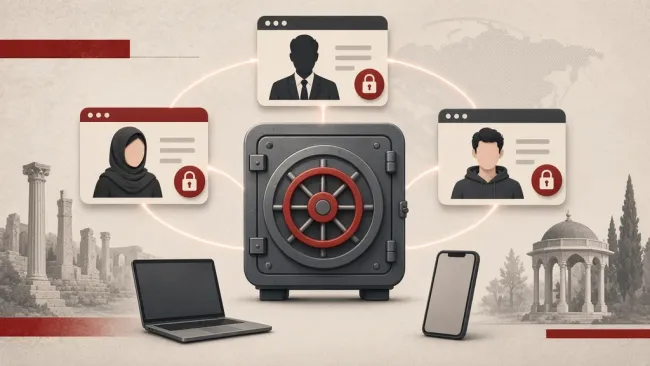
A password manager creates a different password for each account and keeps them in an encrypted vault. Whether you choose a local file or a syncing service depends on your devices…

Passwords
Two-factor authentication: which method, how, and a recovery plan
Two-factor authentication protects an account even if the password leaks, but methods are not equal. Prefer an authenticator app or a passkey over SMS for important accounts, and…
Passwords
Password and second-factor tools: selection and recovery
A password manager and a second-factor tool do different jobs. Set both up with a tested recovery path, and at higher risk do not keep one-time codes only inside the same password…