
Google tool guide: accounts, mail, files and data sharing
A Google account unlocks mail, files, photos and often a phone backup. Protect it with a unique password and strong 2-Step Verification, review devices and connected apps, and check Drive files that are shared with anyone who has the link.
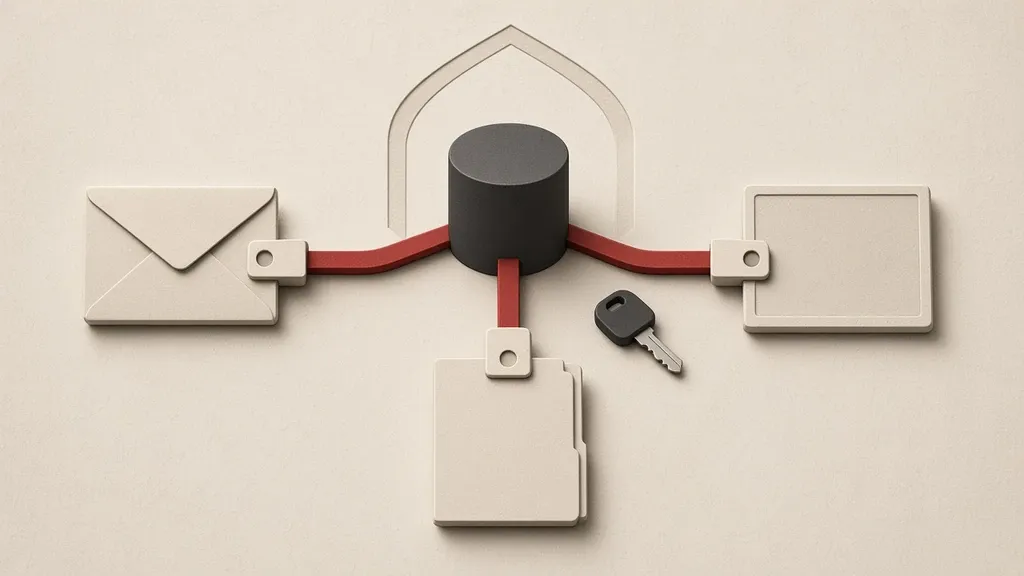
A Google account unlocks mail, files, photos and often a phone backup. Protect it with a unique password and strong 2-Step Verification, review devices and connected apps, and check Drive files that are shared with anyone who has the link. Someone who takes this account usually reaches several services at once, not only one inbox.
If you see a sign of an unwanted sign-in, follow recovering a compromised account. Phone backups, and how sync differs from a copy you can restore, are in backups you can restore.
Start the Google account from myaccount
Most sign-in and recovery settings live at myaccount.google.com. Start from that official address itself, not from a link that arrived in mail or a message and looks like a sign-in page.
- Open myaccount.google.com.
- Open Security.
- Under How you sign in to Google, change the password and choose a unique one that is not the same as the recovery inbox password.
- Keep the password in a password manager or on separate paper, not in a draft in this same account.
- If you have both a personal account and a work Workspace account, configure each one separately; a work admin’s policy may lock some options.
Make 2-Step Verification strong
- In Security, open How you sign in to Google and start 2-Step Verification.
- Use an authenticator app or a security key / passkey as the main method, not SMS alone. SMS is tied to a number and can be taken over if the SIM is swapped.
- A Google prompt on the phone is convenient; pair it with a second method so you are not locked out if that phone is lost.
- Create backup codes and store them outside this account.
- Read the recovery phone and email and remove anything you no longer control.
- Do not send a verification code to anyone who claims in a chat to be Google support. Official support will not ask for a code inside a chat.
Create a passkey only on a device you own
A passkey proves that the device is with you and usually skips a separate second step for that sign-in. That convenience is fine if the device is yours, and a risk if you create the passkey on a shared computer or a work device you must return tomorrow.
- In Security, open Passkeys and security keys.
- Create a new passkey only on a phone or computer that you control.
- Read the list of existing passkeys and delete an old or unknown device.
- If you use a hardware key, keep a second one somewhere else so losing one does not lock you out.
Finish Security Checkup
- Go to myaccount.google.com/security-checkup or open the same checkup from Security.
- Work through recent security activity, sign-in methods, devices and connections to other apps one by one, instead of only flipping screens.
- If the checkup flags something such as mail forwarding or an unknown app, open it there and decide.
- Repeat the checkup after travel, after using someone else’s computer, or after you change phones.
Devices that have access to the account
- In Security, open Your devices; you can also reach the official device list from the Google Account device page.
- Read each device for type, last activity and, if shown, location.
- Sign out of anything unknown. If the doubt is serious, sign out of the other devices too and then sign in again on your own device.
- Take a “Was this you?” notice seriously. If it was not you, choose no and review the password and sign-in methods the same day.
- Do not sign into Chrome with this account on a shared computer; Chrome sync brings history, saved passwords and tabs into that session.
Apps and Sign in with Google
- In Security, open Your connections to third-party apps and services.
- Look at each connection: does it reach mail, Drive, contacts, or only the email address?
- Remove a connection you do not recognize or no longer need.
- Signing in with Google to a news site or a low-trust tool in practice gives that tool a path into part of the account; if you needed it only once, disconnect it afterwards.
- If you still see App passwords for older clients, delete unused ones. For a new client use official OAuth sign-in, not a password that opens the whole inbox.
Mail: forwarding, filters and other people’s access
Safer inbox settings are covered in the email guide in this set. Here we only cover the settings that put the Google account at risk or that stay hidden after a takeover.
- In Gmail settings, open See all settings and go to Forwarding and POP/IMAP.
- Remove forwarding to an address you do not recognize. This is a common sign of a taken-over account.
- Read filters and blocked addresses; a hidden filter can delete new mail or send it somewhere else.
- Under Accounts and Import, see whether anyone has been granted access or the ability to send as you.
- Review IMAP if you do not need it.
- Confidential mode does not end-to-end encrypt a message; Google still has technical access to the content and only adds expiry or an extra passcode for the recipient.
Find Drive files that have a public link
Sharing as Anyone with the link means anyone who has that address can view, comment or edit, depending on the role. A link spreads quickly through mail, chat or a public page. An editor can usually share again or add new people.
- Open drive.google.com.
- In the search bar, open the People filter and choose Anyone with the link. Check the more public-on-the-internet filter too if it exists.
- Open each sensitive file or folder, tap Share and set General access to Restricted.
- Remove people who should no longer see it, and change Editor to Viewer if they do not need to edit.
- Avoid @mentioning someone in a document comment unless you want that person to gain access; a mention is often an invitation to share.
- Review Publish to the web separately from ordinary sharing and turn it off if you do not need it.
- Blocking download for viewers is a convenience; it does not stop a screenshot or someone copying the text.
- If you use a shared drive on Workspace, review membership of that drive as well; access there is different from access to one file.
Photos, shared albums and Locked Folder
- In Google Photos, open albums and sharing links and close anything that should no longer be public.
- Turn on Partner sharing only for someone who should see that library.
- Locked Folder stays on the device and does not sync like other albums; do not treat it as a cloud backup, and those files may go with the phone if the phone is lost.
- If Photos backup is on, new pictures go to the account. That helps recovery and is a risk on a seized device; the framework is in the backups guide.
- If location on photos or face grouping is sensitive for you, limit those in Photos settings.
An Android backup is tied to this same account
- On an Android phone go to Google settings and then Backup, and see what is stored: device settings, some app data, SMS or call history.
- If this phone should not be tied to this identity, do not point the backup at another account by mistake, and avoid unwanted sync.
- A cloud backup by itself is not a vault separate from Google. Details of a copy you can actually restore are in backups you can restore.
Chrome sync and Google Password Manager
- In Chrome settings, open You and Google and see what sync carries: passwords, history, bookmarks, cards.
- If there is a separate encryption passphrase for synced data and you want Google itself not to read that copy, set it on purpose and store the passphrase outside the browser. Forgetting it means that synced data will not come back on a new device.
- At passwords.google.com review saved passwords and delete anything that should no longer sit in the cloud.
- If your version has on-device encryption for Password Manager, understand it and do not confuse it with the Google account password itself.
- Do not turn sync on a shared computer, and sign out of Chrome when you finish.
Activity history and location
- In the Google Account go to Data & privacy and open history settings: Web & App Activity, YouTube History, and Timeline or Location History if it is there.
- Turn on auto-delete after three, eighteen or thirty-six months if you want less history to remain.
- Open myactivity.google.com once to see what is actually stored.
- Turning history off does not erase other copies that remain in mail or Drive.
Calendar and naming other people
- In Calendar settings, see who the calendar is shared with and at what detail: free/busy only, or all event details.
- Do not make an event public unless you need to. The title and place are information by themselves.
- Inviting someone to an event usually shows them the details; treat the guest list like a file-sharing list.
Inactive Account Manager and data export
- In Data & privacy, if you want someone to receive data after a period of inactivity, set Inactive Account Manager on purpose and choose someone who should have that access.
- For a local archive, open Download your data or takeout.google.com and export only the sections you need, not the whole account without review.
- The export file no longer sits behind the account lock; keep it like any sensitive document, do not leave it on a shared computer, and delete the temporary copy after you move it.
Advanced Protection Program
For people at higher risk of being targeted, Google offers the Advanced Protection Program. Sign-in usually depends on a passkey or a security key, and third-party access to sensitive data is more limited. Account recovery also becomes harder; that cost is deliberate.
- Read the program from the account Security section and enroll only if it fits your situation.
- Prepare a second sign-in method and backup codes first.
- After you enroll, review third-party connections again because some will be cut.
Payments, Find My Device and related accounts
- Review payment methods and Wallet in the account and remove a card or account that should not remain.
- Find My Device shows which phones are tied to this account and roughly where they are. Remove an old device from the account.
- A YouTube channel, ads and some business tools depend on this same sign-in. Limit manager roles in that service separately.
- If a family group is on, review it; a family member may see purchases or some data.
If you think the account is at risk
- From a device that is still yours, open myaccount.google.com.
- Change the password, sign out unknown devices and cut app connections.
- Check mail forwarding and filters in the same pass.
- Take a newly added recovery email or number seriously and remove it.
- The rest, and the warning signs, are in recovering a compromised account.
Common mistakes
- Using the same password for Google and for the recovery inbox.
- Using only SMS for 2-Step Verification.
- Creating a passkey on a cafe computer or a colleague’s machine.
- Leaving a Drive file on Anyone with the link with the Editor role.
- Assuming Gmail confidential mode is end-to-end.
- Ignoring mail forwarding after an unrecognized sign-in.
- Signing into Chrome on a shared device.
- Sharing a calendar with all details to a wide circle.
When you lose the verification phone
- Before you change phones, prepare a second method such as a security key, a passkey on another device or backup codes.
- An authenticator cannot be copied like an ordinary file without signing into the account again; a genuine app may offer an official transfer, but do not rely on that alone.
- After you sign in on the new phone, remove the old device from the device list and from the passkey list.
- Update the recovery number the same day if the SIM changed, so a recycled number does not become someone else’s way in.
Documents, comments and share expiry
- Docs and Sheets use the same Share dialog as Drive; one editor link in an email thread is enough for the document to change.
- A comment in a document that has a link is readable by anyone who has that link.
- On a work account, if access expiry exists, set a date for a temporary guest so access does not remain after the project.
- When you leave an organization, transfer ownership of files that must remain to an account that should keep them; otherwise the file may close with your account or stay with an organization that should no longer see it.
- A Google Form that writes answers to a spreadsheet also shares that sheet; review access to the form and the table separately.
Published sites and groups
- If you published a page with Google Sites, open it in the sites list and see whether it is public or restricted.
- Publishing a document to the web creates a copy that removing Drive sharing alone does not necessarily pull off the internet at once; close it from the same Publish path.
- Treat membership in a public Google Group, and a post there, as publishing.
- Review a public calendar or an embedded calendar on a site in the same pass.
A work account and leaving the organization
- A Workspace account belongs to the organization. An admin can see mail and Drive, end a session or assign the account to someone else.
- Do not keep personal files on a work account if they should not remain there tomorrow.
- Before a collaboration ends, move ownership of files needed for continuity to an organizational account, not to your personal account unless policy allows it.
- On the phone, add the work account separately from the personal one and understand what each account syncs.
Contacts and address-book sync
- Open the account contacts at contacts.google.com and see what has synced from the phone.
- If identities should stay separate, do not sync a work address book onto a personal account, and do not pour personal contacts into the organization’s account.
- Keep a contacts export like any other sensitive list, and do not leave it in a public sync folder or on a shared computer without a password.
What Google does not hide
2-Step Verification keeps a stranger out, but Google itself stores the content of ordinary mail, Drive files and backed-up photos. Confidential mode, Restricted sharing and passkeys do not change that fact. If the text should not sit with any service, do not write it in this account; choose a more suitable channel.
Open a sign-in alert from inside the account itself
- If a message reports a new sign-in, do not trust the link inside the message; open myaccount.google.com yourself in the browser.
- Read recent security activity there.
- If the sign-in was not familiar, change the password, remove that device and review sign-in methods.
- Ignore a message that says the account is suspended and offers a new form to “sign in and lift the suspension”; sign in only from the official address.
Last inbox activity and mail sessions
- At the bottom of the Gmail inbox, open Details or Last account activity and look at open sessions and approximate location.
- If a session is unfamiliar, sign it out there and also disconnect devices in myaccount.
- This list complements the account device list; it does not replace it.
Location sharing and video calls
- Turn on live location sharing in Maps only for someone who needs to reach you at that moment, then turn it off.
- Do not put a Meet link in a public channel if the meeting should stay limited; turn on host controls and, if the meeting repeats, treat an old link as spent and create a fresh one.
- A meeting recording stays in Drive and follows the same file-sharing rules.
Travel and a second sign-in method
- Before you travel, keep backup codes somewhere separate from the phone you carry.
- If you may not receive SMS on that number at your destination, do not rely on SMS as the only way in.
- Do not sign into a password-syncing Chrome profile on a hotel computer; if you must, use a guest window, leave sync off and sign out completely at the end.
Saved addresses and shared service storage
- Remove or limit a saved home or work address in Maps and in purchase shipping if it should not stay on this account.
- Mail, Drive and Photos usually share one storage quota; filling the space is not a secure delete and does not unshare a sensitive file.
- Look at the Drive and Photos trash as well; a deleted file can be restored until the trash is emptied, including by someone who still has access.
- When a project ends, remove sharing from a shared folder instead of only hiding it from your own view.
Several accounts in one browser
Chrome and a Google account let you switch several identities in one window. That is convenient, but uploading a file into the wrong Drive or sending mail from the wrong address is common. For sensitive work, create a separate Chrome profile or use a window where only that account is signed in. Closing one tab does not sign that profile’s sync out. After you finish on a shared device, sign out of Chrome itself and, if needed, clear locally synced data from Chrome settings so passwords and tabs do not remain on that device.
What to do today
- Set a unique password and finish 2-Step Verification with an authenticator or a key.
- Clean up backup codes and the recovery email.
- Complete Security Checkup and sign out unknown devices.
- Review third-party app connections.
- In Drive, find Anyone with the link files and restrict them.
- Read Gmail forwarding and filters.
- Turn off Chrome sync on a shared device, or sign out.
- Look at activity history and turn on auto-delete if you want it.
- Remove an old payment method and a lost device from the account.
- Re-share one sensitive file with the right Viewer or Editor role, check Drive trash, and delete a passkey left on a device that is no longer yours.
Related guides

Communication
Safer email: account protection, archiving and message encryption
Email is often the key to every other account, so protect the account first with a unique password, two-factor authentication and a check of forwarding rules. The HTTPS lock is…
Communication
Suspected account compromise: contain, recover and revoke persistent access
If an account may have been taken over, change the password from a device you trust, sign out other sessions, and review recovery methods and forwarding rules. Changing the…

Passwords
Two-factor authentication: which method, how, and a recovery plan
Two-factor authentication protects an account even if the password leaks, but methods are not equal. Prefer an authenticator app or a passkey over SMS for important accounts, and…
Passwords
Password managers: choosing one, backups and recovery
A password manager creates a different password for each account and keeps them in an encrypted vault. Whether you choose a local file or a syncing service depends on your devices…

Files and information
Backups and recovery: copies you can actually restore
A backup counts only if you can restore it without the lost device or account. Syncing is not enough; keep extra copies of what matters, store at least one copy somewhere else,…

Communication
YouTube tool guide: video publishing, channels and privacy
YouTube security is not separate from the security of the Google account behind it. Limit channel manager roles and, before you publish, look at what the picture, sound and…