
Physical information security: people, premises and continuity
Information security is not only digital. A screen lock, keeping devices out of other people’s hands, care with paper and USB sticks, and a backup outside the same building make everyday accidents much less costly.
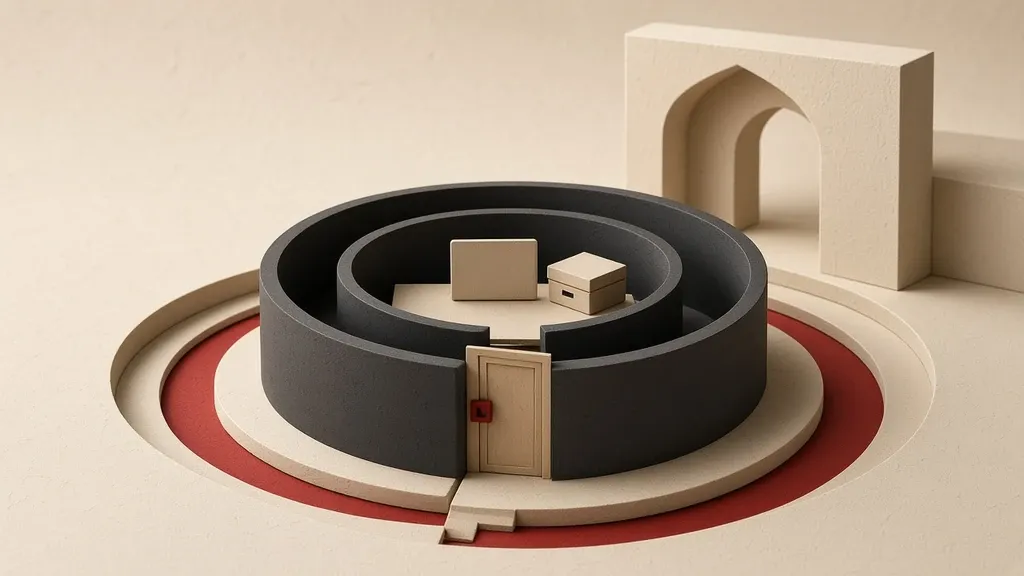
Information security is not only digital. A screen lock, keeping devices out of other people’s hands, care with paper and flash drives, and a backup outside the same building make many everyday incidents cheaper to recover from. Most data loss in ordinary life does not come from a sophisticated theft; it comes from an unlocked device on a desk, a page in the printer tray, or backups that the same fire or the same burglary took together.
If your work is collective and the physical threat is broader than a desk, also read community physical and digital safety. Build restorability separately with backups you can restore.
Keep the device and the screen away from other people
A screen lock is the cheapest physical control. Without it, anyone who reaches the phone or laptop for a few seconds reaches the same accounts that are open on the device. Disk encryption does not help in that moment, because the system is on and unlocked.
- On Windows, lock the screen with Windows + L. In Accounts settings, open Sign-in options and require a sign-in after the PC wakes from sleep.
- Keep the time before the screen turns off short: System settings, Power & battery, Screen and sleep.
- On a Mac, use Lock Screen from the Apple menu. In System Settings, under Lock Screen, set the password requirement to immediately or the shortest time you can live with.
- On iPhone, shorten Auto-Lock under Display & Brightness and keep a device passcode on under Face ID & Passcode.
- On Android, shorten the display timeout in Display settings and set the screen lock to a PIN or a strong pattern, not a simple swipe to the home screen.
- Every time you leave your desk, even to walk to the printer, lock the screen. That habit matters more than any extra gadget.
Notification previews on the lock screen
- On iPhone, open Notifications settings and set Show Previews to When Unlocked if messages should not be readable on the desk.
- On Android, limit lock-screen notifications so message text is not visible.
- On Windows, reduce lock-screen notifications in Notification settings.
- A watch or headset that repeats notifications can show the same text in a crowd; limit them for more sensitive accounts.
Shoulder-surfing and public places
In a café, on transit and in a waiting room, a screen is read more often than it is stolen. A privacy filter helps on work trips, but it does not replace a lock or the choice not to do sensitive work in a crowd.
- Do not open a sensitive document full-screen in public, and arrange windows so they cannot be read from behind you.
- When you enter a password, cover the screen a little, and use a password manager’s autofill when you can so you type less.
- Do not hand over an unlocked phone “just to watch a video.” Create a guest user or a limited profile if you must share the device.
- In a taxi or on a plane, silence notifications and hide previews.
Premises and people
Being inside the building does not mean someone should reach your files. A visitor, a technician, a cleaner and a guest colleague have the same physical access you give them if the screen is unlocked and papers are on the desk.
- Do not leave a visitor alone with an unlocked computer.
- After a meeting, check the room for leftover papers, whiteboard notes and cables.
- If a technician must take the device, back it up first, sign out of sensitive accounts, and if you can set a temporary passcode you will change later.
- Cover the laptop camera when you do not need it; the lens can show the desk, a document and the room.
- Account for a smart speaker or a meeting-room camera when you have a sensitive conversation: turn it off, or do not hold that conversation in that room.
Paper, printers and whiteboards
- Do not leave a sensitive page in the printer tray. Pick it up as soon as the job finishes.
- On a shared printer, check the name on the job so you neither take someone else’s pages nor leave your own.
- Do not tear a draft and drop it in an ordinary bin; use a shredder or your workplace’s trusted destruction method.
- Do not put a sticky note with a password, a code or an address on the monitor.
- Erase the whiteboard after a meeting, and do not photograph it first if that photo would travel somewhere else.
- Do not leave envelopes and bills that show a home address on a shared desk.
Flash drives, disks and unknown cables
- Give portable storage a neutral label and keep it in a lockable drawer, not in an open bag on the desk.
- If sensitive data goes on a flash drive, encrypt it; see the stored-file encryption guide for how.
- Do not plug an unknown or promotional flash drive into a work computer.
- Do not plug public charging cables and accessories into a data port in an unknown place if you can use a wall charger or your own cable.
- When you return or throw away a flash drive, deleting files is not enough; encrypt-and-format it or retire the device.
Locks, drawers and keys
- Put sensitive paper in a lockable drawer or cabinet, not in a tray on the desk.
- Do not leave the key in a public place with a label that says “documents.”
- If several people need that cabinet, know who has keys, and change the lock when someone leaves the group.
- In a shared office, cable-lock the laptop to the desk when you are away if opportunistic theft is likely; this does not replace encryption or a screen lock.
- Lock the room door when you leave the office, even for a few minutes, if documents and devices stay there.
Notifications, screen sharing and a cluttered desk
- Before you share your screen on a video call, silence notifications and close unrelated windows.
- Clear the desktop background and desktop files of sensitive names.
- A whiteboard and papers behind you appear in the camera frame; check the angle before you start.
- Do not leave clipboard history on if a shared computer might still hold a password or a draft.
Home and housemates
Most devices stay unlocked more often at home than at work. A child, a guest and a home technician see the same unlocked screen.
- If a computer is shared, give each person their own user with their own password.
- Do not pass an unlocked phone over for a game.
- Do not leave a backup on an external disk next to the laptop on the same shelf if you want a theft not to take both.
- Do not leave work paper and flash drives on the living-room table overnight.
Plan for an incident too
Fire, water, theft and a lost bag take both copies if the backup sits in the same drawer, or only in a cloud that is signed in solely on that device. Continuity means you can resume work somewhere else after an incident, not only that the file is at hand today.
- Keep at least one encrypted backup outside the same building: a trusted cloud, or a disk in another place you trust.
- Test a restore once so you do not discover after an incident that the archive was incomplete.
- Write down a list of critical accounts and where recovery codes live, separately from the device itself, and protect that list.
- If a device is lost or stolen, sign into the accounts from another device, close sessions, and if you can lock or erase the device from Find My.
- For a phone: use the official Find My path from iCloud or the Google account, then change important passwords.
- Count water and drops as well: a single copy on one laptop dies when a glass spills or the bag falls.
Before you sell, donate or do a major repair
- Back up first and confirm you can restore.
- Sign out of Apple, Google and Microsoft accounts, and turn off Find My for that device through the official path if needed so the next owner is not locked out.
- On iPhone go to Settings > General > Transfer or Reset iPhone and erase all content and settings.
- On Android open reset options and erase all data.
- On Windows, from Recovery, reset this PC and remove files. If the disk was encrypted, a reset on the encrypted device is usually safer than donating with leftover files.
- Do not sell a disk that will not reset; retire it.
When the device goes out for repair
- Make a fresh backup.
- Sign out of sensitive mail and messaging accounts if the repair can proceed without them.
- Temporarily drop fingerprint or face unlock and set a passcode you will change when the device comes back, so a biometric lock cannot be used without you.
- Leave the SIM behind if it is not needed.
- After return, change the passcode, review open sessions and check that no unfamiliar app was installed.
Cameras, microphones and documents on the desk
- Keep a cover on the lens during ordinary work and remove it only for a call.
- Do not put a paper document in front of the laptop camera or in front of an overlooking window.
- Limit camera and microphone permission for apps in system settings so an app that does not need them cannot use them.
- In a sensitive meeting, take extra devices that are not needed out of the room, or lock their screens.
Mail, trash and old printouts
- Do not leave work mail sitting for hours in a shared building mailbox if the contents are sensitive.
- Destroy an archive folder you no longer need with a shredder or your workplace method, not by setting it next to the hallway recycling bin.
- Do not put old flash drives and disks in the same donation box as paper.
- Collect printed reports when the work is done; a digital copy in a shared folder is easy to forget, and the paper copy stays on the desk beside it.
Continuity when one person is away
If only one person knows the cabinet code, where the backup lives and how to restore, their sudden absence stops the work. If everyone knows the same secret, control disappears. For group work, define a shared safe place for restore instructions and the keys that named people can reach, and update it when membership changes. Details of backup belong in the restorability guide.
Common mistakes
- Disk encryption is on, so leaving the screen unlocked does not matter.
- Someone printed a page and left it in the tray until evening.
- The backup is the external disk next to the laptop; a theft takes both.
- Plugging in an unknown flash drive “just to see one file.”
- Selling a phone after deleting icons, without a factory reset.
- Leaving the password on a sticky note under the keyboard.
- Sending a device to a repair shop still signed into accounts.
A screen lock is not the same as disk encryption
When the device is on and unlocked, disk encryption does not protect the contents from someone who has that screen. When the device is off and the disk is encrypted, pulling the drive and plugging it into another computer usually does not yield the data. If the disk is not encrypted, someone with physical access to a powered-off device can read the drive elsewhere.
- Take the screen lock seriously for the time the device is with you and awake.
- Take encryption seriously for when the device is off, in deep sleep, or stolen.
- Do not leave recovery media or the encryption recovery key beside the device itself.
- Do not leave firmware set so the laptop boots from a flash drive without a barrier if other people have physical access; check that option in the computer’s firmware.
Turn on Find My now
After a loss it is too late to set this up. It has to be tied to the account beforehand.
- On iPhone go to Settings, your name, Find My, and leave Find My iPhone on.
- On Android turn on Find My Device in Security settings and stay signed in with that Google account.
- On Windows open Privacy & security settings and turn on Find my device for the Microsoft account.
- Once, from another device, sign into the same account in a browser and confirm this device is in the list, so an incident is not your first login.
- After a theft or loss: mark the device lost from that page, or erase it if you must, then change passwords on open accounts and close sessions.
A multifunction printer has a memory
Office copiers and scanners often keep images of jobs. An address book, sent jobs and recent scans may be visible to the next user. When the machine is retired and the leasing company takes it away, that memory may go with it.
- After you scan or copy a sensitive document, check on the device whether the job history clears itself or you need to clear it.
- Do not leave the document in a public folder on the device.
- If you manage the office, ask about wiping the internal drive through the maker’s official path before a leased machine goes back.
- Fax and send folders keep the same kind of history; review them after sensitive work too.
Two minutes at the end of the day
- Lock the screen or close the device.
- Put papers from the desk into a lockable drawer.
- Remove flash drives from ports and put them away.
- Empty the printer tray.
- Erase the whiteboard.
- If you are the last person in the office, lock the door and check that windows and document drawers are closed.
- Sign out of the meeting-room computer and do not leave the last slide or document on a live display.
When someone leaves the group
- Collect keys, entry badges and loaned devices that same day.
- Change the shared cabinet code and the guest Wi-Fi if that person knew them.
- Remove their access to the document drawer and to the physical backup location from your list.
- If a device was returned, reset it or at least sign out of accounts and clear the profile before handing it to the next person.
The modem, the network and the meeting room
- Do not leave the modem and router where a guest can reach them; someone who can reach a port or the reset button can disrupt the network or plug in a new device.
- Do not leave the router’s admin password at the default, and do not stick it on a note under the device.
- In a meeting room, treat the network port and display as open; do not leave files on the room computer, and sign out after a presentation.
- Do not assume a cable or flash drive left in the meeting room is yours, and do not plug it into your computer.
Recovery codes and paper copies of secrets
Writing a recovery code on paper is right; leaving that paper under the keyboard or in the device bag is not. Fire or theft of that bag then takes both.
- Keep the paper somewhere that does not depend on the laptop: a separate lockable cabinet, or another safe place outside the everyday bag.
- Do not photograph that paper into a synced gallery if that gallery is always open on the same phone.
- A second copy in a separate place, for example with a trusted person or at another site, helps when two incidents happen together.
- Do not store a backup disk on the floor next to a heater or a pipe; water and heat will ruin that single copy.
Laptops in cars and in other people’s sight
- Do not leave the device on the front seat, even for a few minutes; this is one of the most common thefts.
- If you have no choice, hide it from view and know that this is still not a guarantee.
- Do not leave an obvious laptop bag on the floor behind you in a crowded place.
- In a hotel, if the room safe is available, put the device and the backup disk there, and do not leave paper documents in the same bag. Travel details belong in the digital security while traveling guide.
When you must hand the device over for one task
Unlocking the device fully so someone can see one photo or place a call also gives them the rest of your mail and messages. The operating system has a way to limit the device to one app for exactly this.
- On iPhone go to Settings > Accessibility > Guided Access and turn it on. Set a separate passcode for leaving that mode.
- Open the app you want, triple-click the side button and start Guided Access. The other person sees only that screen.
- On Android turn on app pinning in Security settings, open the app, and pin it from the recent-apps view.
- After you take the device back, leave that mode and confirm the screen lock is active again.
- If someone only needs to place an emergency call, prefer the call from the lock screen over unlocking the phone fully.
Waking from sleep should ask for the password again
- On Windows go to Settings > Accounts > Sign-in options and see whether a sign-in is required after sleep. If it is set to never, change it.
- Once, close the laptop lid or put it to sleep, open it again, and make sure you do not reach the desktop without a password.
- Dynamic lock, if Windows recognizes your phone over Bluetooth, can lock the screen when you walk away; look at it in the same sign-in options and know it does not fully replace the habit of locking by hand.
- On a Mac open Lock Screen settings and set the password requirement after the screen saver starts or the display turns off to immediately. Test it once by closing the lid.
- A lock hot corner on a Mac is useful when moving the pointer there locks the screen; do not put it where it triggers by accident and then gets turned off.
Do not say codes out loud, and count an open office
- Do not read a sign-in code out loud in an open space to someone helping you on the phone; that number is the way into the account.
- In a glass office or open plan, a privacy filter helps, but still do not turn a sensitive document full-screen toward the corridor.
- An organization sticker on the laptop lid and an ID badge on the bag tell people in public that the device may be worth a look; consider that when you travel.
- Take account-recovery conversations into a quiet room, not next to reception.
What to do today
- Shorten the auto-lock time and lock the screen once, on purpose, when you stand up.
- Limit lock-screen notification previews for work messages.
- Clear the printer tray and the desk of sensitive paper.
- Check whether a real backup exists outside this building; if it does not, make that the priority.
- Collect flash drives from the desk and encrypt them if they hold sensitive data.
Related guides

Files and information
Backups and recovery: copies you can actually restore
A backup counts only if you can restore it without the lost device or account. Syncing is not enough; keep extra copies of what matters, store at least one copy somewhere else,…

Files and information
Secure file storage: encryption, recovery keys and unintended copies
Encryption makes it hard to read files on a lost device or disk, but it does not protect an open file or leftover plaintext copies. Treat disk encryption and file encryption as…
Assess and plan
Digital security while traveling: less data, preparation and recovery
Before you travel, take fewer accounts and files, keep backups and recovery codes off the travel device, and check the lock and encryption. Avoid public Wi-Fi and unknown cables…
Communication
Suspected account compromise: contain, recover and revoke persistent access
If an account may have been taken over, change the password from a device you trust, sign out other sessions, and review recovery methods and forwarding rules. Changing the…