
Digital security while traveling: less data, preparation and recovery
Before you travel, take fewer accounts and files, keep backups and recovery codes off the travel device, and check the lock and encryption. Avoid public Wi-Fi and unknown cables for sensitive work, and review account sessions if the device was inspected or out of your sight.
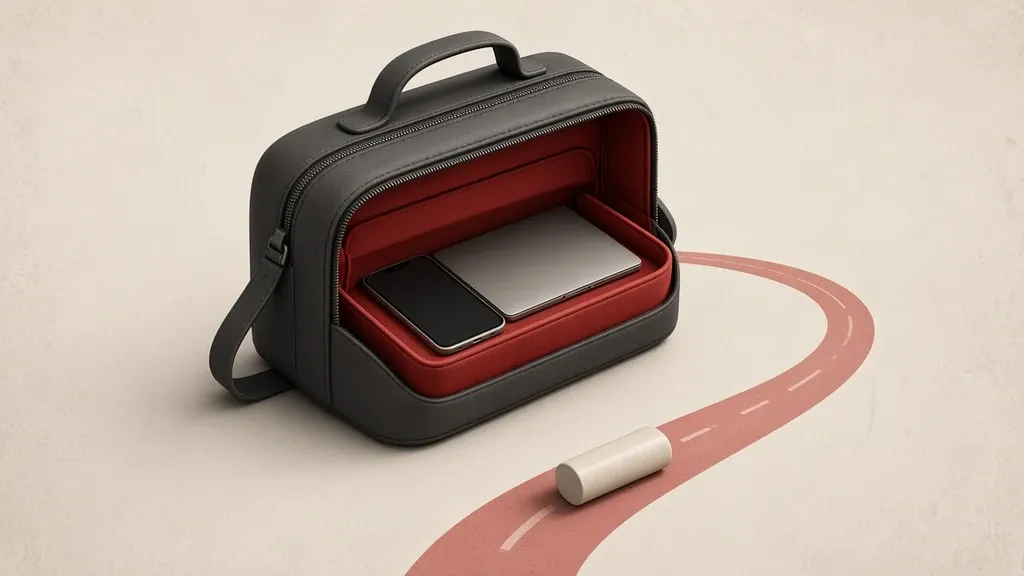
Before you travel, reduce the data and accounts you take with you, keep backups and recovery codes somewhere other than that same device, and check the screen lock and encryption. Do not use public Wi-Fi or an unknown cable for sensitive work, and after an inspection or any time the device was out of your sight, review account sessions. Most travel problems are not sophisticated attacks; they are opportunistic theft, a shared hotel network, and files that did not need to come with you.
Run the quick device security checklist once before you leave, and test a backup as in backups you can restore. If detention or a forced device inspection is a real risk for you, read planning for detention risk separately and get advice that matches your situation. This guide does not replace that one.
Before you leave, lighten the digital load
Every file and every open account on a device that travels can be lost, seen or asked about at an inspection. Lightening the load means taking only what that trip requires, not bringing your everyday phone with its whole history unreviewed.
- Write down the accounts you will actually need on the trip and sign out of the others on that device.
- If you will not need a sensitive work file on the road, remove it from the device or keep it in an encrypted space that will not open without you.
- Flip through the photo library once: pictures of documents, correspondence and your home do not all need to be with you at the airport.
- If you can travel with a quieter laptop or phone that does not hold your main accounts, that helps more than any small setting on a full device.
- If you are taking the main device, at least do not mix everything into the same everyday session; keep ordinary travel tasks apart from sensitive work.
Do not keep the backup and the codes only on that device
- Make a fresh backup before you leave and test restoring one file.
- Put recovery codes for important accounts on paper or somewhere that does not travel inside the device, so a lost phone does not take both the account and the way back in.
- At least one trusted person should know which backup can be used if you do not return; do not fill that message with details they do not need.
- Turn on Find My beforehand and, once, from a browser on another device, confirm the phone or laptop is in the account’s device list.
- Check disk encryption on the laptop and the screen lock on every device before you leave, not in the inspection line.
Updates, two-step verification and a network test
- Update the operating system and your messaging and banking apps before the trip; airport Wi-Fi is a poor place to install a large update.
- Set two-step verification on an authenticator app or a security key, not on SMS alone. Texts arrive late on roaming, or they go to a number that is not with you.
- If you use a trusted VPN for work, install it at home and test it once. Do not install a new VPN advertised on the airport Wi-Fi itself.
- Turn off automatic joining of open networks.
- Leave private Wi-Fi addresses or random hardware addresses on in the device’s Wi-Fi settings.
Set Wi-Fi and nearby sharing before you go
- On iPhone, open Wi-Fi settings, turn on Ask to Join Networks, and leave auto-join off for open networks. Set AirDrop to Contacts Only or receiving off.
- On Android, open the network details and choose a randomized address. Limit Nearby Share.
- On Windows, go to Network & internet, then Wi-Fi, turn on random hardware addresses, and manage known networks so public networks do not auto-connect.
- On a Mac, check the same options in Wi-Fi settings and under AirDrop & Handoff.
- When you join a public network, set the profile to public, not private or home.
On the way: public networks
Airport, train and hotel Wi-Fi is a shared network. Other people are on it, and a hotel sign-in page can be fake. The site’s own encryption (the browser lock) helps, but the Wi-Fi login page is not where you type your account passwords.
- Do not do sensitive work such as banking, important email or an admin panel on public Wi-Fi. Mobile data or your own phone hotspot is usually more appropriate.
- On a hotel Wi-Fi page, finish only that connection; do not type an email or Google password there.
- If anything on that page looks wrong—an odd address, a certificate warning, a request to sign in with a personal account—do not connect, and use mobile data instead.
- A VPN you already tested helps on a hostile network. Do not put an app you installed from an ad that minute into the path.
- After you leave the hotel, remove that network from auto-join.
Charging and unknown cables
- Use your own power bank and cable.
- If you must use a public charging station, prefer a wall power adapter, not a data cable plugged into a free USB port.
- Do not plug a conference giveaway cable or flash drive into a work laptop.
- On iPhone, set USB accessory access so nothing connects without a passcode if you have that option.
- Do not leave a phone charging unattended at a counter or in a café.
Hotels, rentals and smart TVs
- Do not leave the device on the bed during housekeeping. The room safe is better for a laptop and a backup disk than a clothes drawer. A hotel safe is not an absolute guarantee, but it is out of direct sight.
- Do not use the lobby business computer to sign into email or a bank.
- Do not watch films on the room’s smart TV with a personal account; your session may remain for the next guest.
- If you did sign in, sign out before you leave the room.
- Use the door latch, and do not leave the device in view near a window or balcony.
Opportunistic theft on the way
- Do not leave a laptop on a car’s front seat or alone on a café table.
- On a plane, when you stand up, keep the bag where you can see it or take it with you.
- Do not leave an obvious laptop bag on the floor behind you in a crowd.
- Keep the screen lock short and limit notification previews in public.
- Do not keep travel-document photos loose among other pictures in the gallery where one swipe opens them; a separate folder or an encrypted files app is better.
Location, posting and an empty home
- A story or post with a precise location, posted at the same time, shows both your route and that the house is empty.
- Share live location only with someone who needs to know, and turn it off after you arrive.
- If nobody needs to know where you are at that moment, wait until you have left the airport or hotel before you tag it.
- Check a public calendar or an “on the road” status on a work account.
Inspections and a device out of sight
Border inspection law and practice differ from country to country. This guide is not legal advice. If a forced inspection or detention is possible, talk beforehand with a legal source that fits your situation and read the detention-risk guide. The practical step that always helps is reducing data: what is not on the device cannot be seen in an inspection.
- Before a border, power the device off if you can, so disk encryption is more effective in a fully off state.
- If the device left your sight—an inspection table, left luggage, an emergency repair—do not treat it afterwards as fully trusted.
- After such a separation, review sessions on important accounts from another device and close unfamiliar ones.
- Look in device settings for an unfamiliar management profile; take seriously anything you did not install.
- Change the device passcode after others may have had access.
When you return
- Delete travel Wi-Fi networks from the auto-join list.
- Read the device list and open sessions on important accounts.
- If the device was out of your sight, change the main passwords.
- Before you share travel photos, check them for location and background.
- Remove a travel SIM you no longer need, and make sure it was not added as a recovery number on an account.
Conferences and event networks
- Treat a conference network like hotel Wi-Fi: it is shared.
- Do not plug a booth flash drive or charger into a work laptop.
- If you use a public charging stand, leave the device locked, and prefer your own power bank.
- Before you share a screen in a hall, check notifications and open windows.
- An organization badge and a sticker on the laptop make the device a clearer target in an unfamiliar city; consider that on the street.
Common mistakes
- Installing the VPN suggested by the airport Wi-Fi itself.
- Signing into email from the hotel lobby computer.
- Leaving recovery codes only on the same travel phone.
- Skipping a backup before departure and discovering after a theft that the only copy was that device.
- Charging from a loose cable on an airport table.
- Signing into a video account on the room TV and forgetting to sign out.
- Announcing live that the house is empty on social media.
Judge offline access before you travel
If the password manager, ticket or map opens only when the internet is up, you will be stuck on a plane or behind a broken network and will reach for untrusted Wi-Fi.
- Open the password manager once in airplane mode and see that the entries you need are available.
- Keep the ticket, insurance and the address of the stay in a file you can read offline.
- Mark only the cloud files you need on the trip as available offline; do not sync an entire sensitive work folder.
- Download an offline map of the city you are visiting.
- If the laptop might ask for an encryption recovery key, keep a copy of that key somewhere other than the laptop bag that you can still reach if needed on the trip, and leave a copy at home too.
Prefer your own hotspot to hotel Wi-Fi
- On iPhone open Personal Hotspot settings, set a strong password, and use that for the laptop.
- On Android find the hotspot under Network & internet and change the default password.
- Test data roaming once from home so you are not surprised at the destination. If you will have no mobile data, solve that before the trip, not with the first open Wi-Fi.
- Turn the hotspot off when you finish so other people do not join it and the battery does not drain for nothing.
- Do not give the network a name that shouts your name or your organization.
If a phone or laptop is stolen on the trip
- From the first device or computer at hand, sign into Find My with your account and turn on Lost Mode, or erase the device if you must.
- Ask the carrier to suspend the SIM so recovery texts do not reach the thief.
- Close sessions for email, messaging, banking and store accounts from a browser, and change the main passwords.
- Review cards that were stored on that device for payments.
- If the recovery codes lived only on that device, use the copy you left at home; do not repeat that arrangement next time.
Stolen Device Protection and Lockdown Mode on iPhone
- On recent iPhones, look at Stolen Device Protection under Face ID & Passcode settings and turn it on; it makes changing the password and some sensitive settings harder when the device is away from familiar places.
- If you are traveling into an environment with a higher digital risk, read about Lockdown Mode in Privacy & Security settings. It reduces convenience and turns some features off; choose it deliberately, not out of general fear.
- Confirm that USB accessories cannot connect to a locked phone without a passcode if your device offers that option.
Certificate warnings and bookmarks for official sites
- If the browser warns about a site certificate on hotel or airport Wi-Fi, do not bypass it; move the task to mobile data.
- Open a bank or mail site from a saved bookmark, not from the first search result on a public network.
- Do not install a new extension or app suggested by that same network.
- Leave the device time on automatic; a wrong manual time can make certificate warnings meaningless.
Serial numbers, insurance and family
- Write down the phone and laptop serial numbers somewhere at home before you leave.
- Lock a child’s device just as carefully, and turn off auto-join to open networks there too.
- If you travel with an organization, read that organization’s travel policy; some managed devices have separate limits and support.
- Do not register a travel SIM as the recovery number for a main account unless you must, and remove it after you return.
Rentals and hidden cameras
A private rental sometimes has connected devices, and sometimes a camera where it should not be. No home inspection is complete; the aim is to reduce the obvious risk.
- Look around the bedroom and bathroom for objects facing the bed or placed where you would not expect a camera.
- Do not put the written Wi-Fi password from a slip of paper into a public travel photo.
- Do not sign into your own accounts on the host’s television.
- If you see something suspicious, change location and report it to the host and the rental platform; do not use your own device there for sensitive work.
Turn radios off when you do not need them
- Turn Bluetooth off in a crowd when you do not need it, and do not accept an unknown pairing request.
- Do not leave Nearby Share or AirDrop set to receive from everyone.
- You can turn Wi-Fi off when you only need mobile data, so the device does not join a known-looking open network.
- If both a watch and a computer might be taken together, review unlock-with-watch on a higher-risk trip.
Take the network name from the reception card
The network with the strongest signal is not necessarily the hotel’s. A name that looks like the official one plus an extra letter is common.
- Ask reception or the room card for the exact network name and, if there is one, the sign-in method.
- Do not join a network that simply appears on the device with a similar name without matching it.
- Do not accept a stranger’s suggested hotspot in a café or on a train.
- If the browser shows a certificate warning after you connect, or the sign-in page looks different, disconnect.
See encryption with your own eyes before you leave
- On Windows open Privacy & security settings and read Device encryption or BitLocker. If it is off, turn it on before the trip with the Windows device guide.
- On a Mac, check FileVault under Privacy & Security settings.
- Once, power the laptop fully off and on and unlock it with your password so the trip is not the first test.
- On a phone, make sure a device passcode is on; without one, full encryption does not do the job you need.
Before an inspection, turn off face or fingerprint unlock
A biometric lock opens with you present. Powering the device off, or temporarily disabling face and fingerprint unlock, means the next unlock needs the passcode. What you should say or hand over at a border depends on that place’s law and on legal advice you seek yourself.
- On iPhone, holding the side button with a volume button brings up the power-off screen and disables Face ID until you enter the passcode. On some devices, pressing the button several times has the same effect.
- On Android, if the power menu has Lockdown, use it so fingerprint and face will not work until the PIN is entered.
- Powering a laptop fully off is more effective for disk encryption than putting it to sleep.
A public computer only if there is no other way
- Postpone banking and main logins until you have your own device.
- If you must sign in, use a private window, do not save the password, and sign out when you finish.
- Do not leave a file on that computer’s desktop, and close the session history as far as that sitting allows.
- Pick up a printed boarding pass from that printer tray immediately.
- Later, from your own device, change the password of any account you used on a public computer.
After the trip, open these paths
- On iPhone go to Settings > General > VPN & Device Management and see that no unfamiliar profile was added.
- On Windows read Settings > Accounts > Access work or school.
- On Android check device-admin apps and credentials under Security.
- Forget the hotel network: on iPhone the information button beside the network name; on Windows, Manage known networks.
- If you connected to a display at a conference, do not leave a file on that system, and sign out of the presentation account.
Where to keep a copy of a travel document
A passport scan helps if the document is lost; on the same travel phone it is also another copy of an identity document that goes with a stolen device.
- It is better to keep the copy in an encrypted place you can reach from a replacement device, or with a trusted person at home who can send it to you.
- If it must live on the phone, do not leave it among Camera photos; a locked folder or app is better.
- Do not send that file in a story or a group chat.
- After you return, delete copies you no longer need from the travel device.
Work calls in public
- Use headphones for a call, and do not repeat people’s names and file names out loud.
- If sensitive work cannot wait, cover the screen from a side view with the angle or a privacy filter.
- If a presentation stand has an unknown USB-C port that may also exchange data, connect with your own cable and adapter when you can.
- Before you share a screen, close notifications and unrelated tabs; a hotel page and a mail message show up in the frame.
- Do not put off resetting an important account’s password until you are on hotel or airport Wi-Fi; open that mail and the reset link on your own mobile data if you can, not on that same public Wi-Fi.
What to do today
- Make a backup and test a restore; put recovery codes somewhere other than the travel device.
- Turn off auto-join to open networks and limit AirDrop or Nearby Share.
- Check the screen lock, encryption and Find My.
- Strengthen SMS-only two-step verification on travel accounts with an authenticator app.
- Shorten the list of accounts and files that actually need to come with you.
Related guides

Files and information
Backups and recovery: copies you can actually restore
A backup counts only if you can restore it without the lost device or account. Syncing is not enough; keep extra copies of what matters, store at least one copy somewhere else,…

Files and information
Secure file storage: encryption, recovery keys and unintended copies
Encryption makes it hard to read files on a lost device or disk, but it does not protect an open file or leftover plaintext copies. Treat disk encryption and file encryption as…

Passwords
Two-factor authentication: which method, how, and a recovery plan
Two-factor authentication protects an account even if the password leaks, but methods are not equal. Prefer an authenticator app or a passkey over SMS for important accounts, and…

Internet connection
Safer browsing: destinations, permissions and privacy boundaries
Safer browsing means an updated browser, checking where a link really goes, and giving sites fewer permissions. The HTTPS lock only encrypts the path to that address; it does not,…

Communication
Safer messaging: encryption, contact verification and group management
Safer messaging depends on the kind of chat, contact verification, group membership and where backups live. Signal and WhatsApp encrypt message bodies end to end by default;…
Communication
Suspected account compromise: contain, recover and revoke persistent access
If an account may have been taken over, change the password from a device you trust, sign out other sessions, and review recovery methods and forwarding rules. Changing the…