
Secure file storage: encryption, recovery keys and unintended copies
Encryption makes it hard to read files on a lost device or disk, but it does not protect an open file or leftover plaintext copies. Treat disk encryption and file encryption as separate layers, store the recovery key somewhere else, and back up before you encrypt the only copy.
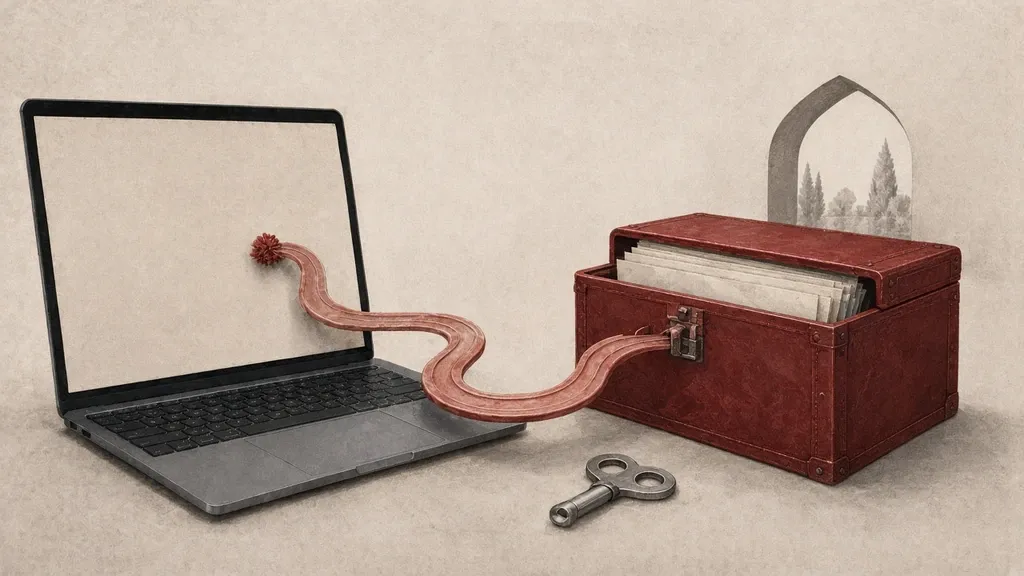
Encryption makes it hard to read files on a lost device or disk, but it does not protect a file that is open on the screen, or leftover plaintext copies that still sit somewhere else. A screen lock is an important layer when the system encrypts the disk; putting a password on a separate file is another layer. Do not treat them as the same thing, and back up before you encrypt the only copy.
How to build a copy you can later restore is in backups you can restore. After you finish, follow sanitizing sensitive data for leftover plaintext. A short device review is in the device security checklist.
Disk encryption and file encryption are two layers
Disk or storage encryption means that when the device is off or locked, someone who picks up the same drive or phone cannot read the files as if they were on an open flash drive. Modern Android phones and iPhones usually turn this layer on when you set a screen lock. On Windows it is called device encryption or BitLocker; on a Mac it is FileVault.
File encryption means a single file or folder is protected with a passphrase or key other than the device lock itself. That layer helps when you want to give the same file to someone else, put it in the cloud, or copy it onto a computer whose whole disk is not encrypted. If you rely only on disk encryption, every file is readable for that session as soon as you unlock the device. If you encrypt only one file and leave the disk itself open, other copies and temporary files may remain unprotected.
Back up the only copy before you do anything else
Forgetting the passphrase, or damaging the encrypted file, means losing that content — not a lock that someone can later “open for you”. Before you put the only copy into an encrypted wrapper, make a separate healthy copy. After you have tested that the encrypted version opens, decide what to do with that plaintext copy: if you no longer need it, delete it with a careful method; if you still need it, keep it somewhere protected as well.
- Put the copy on media you control.
- Write down the passphrase or key at that moment, somewhere separate, not only in your head.
- Open the encrypted file once on the same device or another one so you know it is not corrupt.
- If the test fails, do not delete the plaintext copy yet.
Keep the recovery key away from the same disk
Windows and Mac give you a recovery key or code when you turn on disk encryption. That code is for when you have forgotten the sign-in password or the hardware has changed. Keeping the only copy of it on the same computer you just encrypted makes no sense; if you cannot reach the device, you cannot reach the key either.
- Print the key or keep it in a password manager and on paper, away from that device.
- Do not leave it as a photo on the same computer or as a file on the desktop.
- If a Microsoft or Apple account stores a copy of the key, lock that account like a primary account.
- When you sell the device, the old key should not remain in a public place, and you should reset the device from official settings.
Android and iPhone: the screen lock is the main key
On supported modern phones, data at rest is protected with the screen lock. A short PIN or a simple pattern weakens that layer, because someone who has picked up the phone can guess the lock or read a smudged pattern.
- Set the lock to a long PIN or a password, not only a swipe.
- On Android, go to Settings > Security and privacy and review the screen lock and any device-encryption option. On most phones encryption is on by default and cannot be turned off separately.
- On iPhone, set a strong code under Settings > Face ID & Passcode or Touch ID & Passcode. Without a passcode, data protection is not complete.
- A fingerprint or face is for convenience; you still need a backup code you know, especially after a restart.
- If you use a work profile or Private Space, review that space’s separate lock or settings too.
When the phone is on and unlocked, disk encryption does not stop a program you have run yourself, or someone looking at the screen. For a highly sensitive file on an unlocked phone, a separate file layer still makes sense.
Windows: device encryption and BitLocker
- Go to Settings > Privacy & security > Device encryption. If that page exists, turn it on and save the recovery code.
- On some PCs you open BitLocker from Control Panel or from Windows search instead. Turn it on for the system drive and, if needed, for other drives separately.
- Do not leave the recovery key only in a Microsoft account unless that account is well locked and you also have a separate copy.
- For a flash drive, turn on BitLocker To Go or encrypt that media separately; an unencrypted stick in a bag bypasses the laptop’s encryption.
- If the computer does not support device encryption, at least encrypt sensitive files at the file layer and avoid leaving documents on the desktop.
Once you are signed in, BitLocker presents files as open to that Windows session. Locking the computer when you leave your desk is part of this layer, not an extra formality.
Mac and FileVault
- Go to System Settings > Privacy & Security.
- Turn on FileVault and wait for the initial encryption to finish; the laptop should preferably be on power.
- Write the recovery key down separately at that moment. If you use your Apple Account as a recovery method, protect that account with two-step verification.
- Other users on the same Mac should each be able to unlock the disk with their own sign-in; do not treat a guest account as a way around the lock.
- Encrypt an external disk separately if you can; FileVault covers the startup disk.
Encrypting a single file or folder
When you want to store a document for yourself in the cloud or send it to someone, file-level encryption is a better fit than relying on “this drive is secure by itself”. Common tools range from an encrypted archive to programs that create an encrypted vault. What matters is that the algorithm and software are well known, the passphrase is long, and you test that the result opens after you create it.
- Use a tool whose maker is clear and that is still updated. Do not install an unknown format with an odd extension from a message.
- Create and store the passphrase in a password manager; do not write it inside the same folder as the encrypted file.
- If the program lets you choose, pick a modern format with strong encryption, not an old method kept only for compatibility with ancient archives.
- If you do not need the file name to announce its contents, choose a neutral name — but do not treat the name as protection.
- Send the encrypted file and give the passphrase on another channel. Do not put both in the same email.
Passwords on office documents and PDFs
Putting a password on a Word, Excel or PDF file is better than nothing and helps prevent someone opening it by accident on a shared computer. Not all of those passwords are equal; some older versions come apart easily, and some only stop editing rather than reading. If the document is highly sensitive, put it inside a separate encrypted layer as well, or use a tool built for that job, rather than relying on the document password alone.
- Use the official app’s own encrypt or password-protect option, not an unknown add-in.
- Choose a password different from your Windows or Google sign-in.
- After saving, close the document and open it again with the password so you know it was stored.
- Find and delete any previous plaintext copy that is still in the same folder.
Do not forget unintended copies
Encrypting one file does not cover copies that were made earlier. Those copies often sit in places you think about less:
- Email attachments, drafts and downloaded files.
- Cloud sync that uploaded the same document before it was encrypted.
- Earlier versions inside that cloud folder’s history.
- The recycle bin, temporary folders and an office app’s recovery file.
- Thumbnails, previews and a copy a messenger made when you sent the file.
- A flash drive, an old disk and another computer where you once opened the file.
Before you relax because “it is encrypted now”, walk through the places where you created or sent the file. A separate guide covers thorough sanitizing; the point here is that a crypto layer on one copy does not automatically cover the rest.
Cloud: the provider’s encryption is not the same as encrypting before upload
Most cloud storage encrypts data in its own data centre. That helps if a disk is stolen from that centre, but the service can usually show the file once you sign in. If you are concerned about a taken-over account or about lawful access to that same service, encrypt a sensitive file with a key only you have before you upload it. Remember desktop-folder sync as well: dropping an open document onto the desktop may send that plaintext copy to the cloud.
Removable media and other people’s computers
Flash drives and external disks are easy to lose. If you move a sensitive document on them, encrypt the media itself or put only the encrypted file on it. On someone else’s computer, open the file from that encrypted media if you can, and do not leave a saved copy on their desktop. After you open it, look for a temporary file and delete it if it should not remain.
What encryption does not cover
- Someone reading the screen beside you.
- Malware or a remote-access program running on an unlocked device.
- An unencrypted backup or a plaintext export you made yourself.
- A screenshot taken from the open document.
- Metadata in some formats, if the tool only wraps the content and leaves the name and date visible.
- Forgetting the key; in that case the protection becomes practical deletion.
Take this layer’s passphrase seriously
A short, reused password on a highly sensitive file does not match the effort of encrypting it. Create a separate long phrase in your password manager. If you send the file to someone else, tell them the phrase on a call or on another channel you have already verified. Do not write the phrase in the file name, in the same message as the attachment, or on a label stuck to the flash drive.
Test recovery the way you would test a backup
Once a month, or after any important change, practise opening a sample encrypted file and reading the disk recovery key. Mark characters in the key that look alike. If you keep phrases in a password manager, do not forget a separate export of the manager itself, as in the backup guide; otherwise every key sits in one place.
Common mistakes
- Encrypting the only copy and then forgetting the passphrase.
- Leaving the recovery key on the same computer’s desktop.
- Trusting an old office-document password as the only layer for something highly sensitive.
- Sending the encrypted file and its password in the same email.
- Assuming that because the laptop has BitLocker, the flash drive in your bag is protected too.
- Leaving a plaintext copy in the cloud after you have made an encrypted one.
What protection remains while the device is on
Disk encryption is designed for a device that is off or locked. Once you have signed in with a PIN or fingerprint, the system opens files for running programs. Locking the screen as soon as you leave your desk is part of the same design. A short automatic lock time is better than leaving an unlocked laptop on a café table and trusting its encryption.
Sleep mode also sometimes keeps keys in memory. If the device might leave your hands, or you leave it unattended while travelling, a full shut-down is better than just closing the laptop lid. It is a little slower, but it puts the disk layer back behind a real lock.
Sharing an encrypted file safely
- Create the encrypted copy and open it once yourself.
- Send that file over an ordinary file channel: email, a messenger or a cloud link.
- Do not write the passphrase in the same message. Say it on a verified call, in another messenger whose contact you have verified separately, or in person.
- If several people need the same file, do not gather everyone in one email that also contains the password; either give the phrase separately to each person or use a sharing method you control.
- When the work is done, turn off the cloud link and, if a plaintext copy should not stay on the recipient’s device, remind them of that too.
Synced folders and cloud version history
If you sync a folder such as Desktop or Documents with the cloud, every save may upload a copy. Creating the encrypted file in that folder is fine; saving an open version “only for a moment of editing” may create a version in the history at that same moment. To edit a highly sensitive document, open it outside the synced folder, finish the work, encrypt it again, and only then put the encrypted copy back in the folder if you need to. Review the history of plaintext versions in that service once and delete them if you can.
Photos, exports and large files
Photos and videos are large and often sync along a separate path. Encrypting an entire photo library is impractical for most people; instead, exclude truly sensitive pictures from automatic upload and keep them in an encrypted set. A password-manager export, recovery keys and identity documents belong in the same “small size, high importance” group and should have a separate file layer even if the device disk is already encrypted.
Several devices and one key
If you open the same encrypted file on a phone and a computer, the passphrase has to reach both without sitting as plaintext in a synced note on both. A password manager is built for that. Avoid writing the phrase in a “note to self” chat inside a messenger that has a readable cloud backup. When you retire a device, check that encrypted files and phrases are not left on it, or at least reset the device.
Keep the encryption tool updated
The program that wraps files needs official updates like any other program. A very old format may no longer be safe, or even openable. Before you abandon a tool, repack important files with the new one and test that they open. An encrypted file that only opens with an abandoned program is, a few years later, a data-loss risk of its own.
When you have forgotten the password
Most properly encrypted formats have no “recover by email” path. If the passphrase is gone and there is no disk recovery key either, the content is effectively lost. Take that seriously before an incident, not after it. Do not trust software advertised as able to open any file without the password; for a strong format that is usually false, and for a weak format the tool itself may be unsafe. If you have only forgotten the Windows sign-in password and you still have the BitLocker key, use that key according to Microsoft’s official guidance, not an unknown tool.
Do not confuse encryption with hiding a file
Hiding a file, changing its extension, or nesting it inside several folders is not protection. Someone with access to an unlocked disk can usually find it with a search. Compression without a password only reduces size. What makes a file hard for someone else to read is the key and the algorithm, not the folder name. A neutral name alongside real encryption is fine if you want less attention; do not use a neutral name instead of encryption.
Printing, screenshots and office apps
Printing an encrypted document opens it on paper and sometimes in the printer’s memory. If the material should not have a physical copy, do not print it. A screenshot also sends the same content into the gallery and perhaps into a photo cloud. Office apps may create a plaintext copy in a temporary folder for autosave; after you close a sensitive document, if you are not sure about the app, glance once at the temp folder and at that app’s recent-files list.
Travel and crossings with an encrypted device
While you travel, disk encryption stops someone who finds a lost bag from reading storage easily. At the same time, you may be asked to unlock a device at some crossings. This guide is not legal advice; technically, an unlocked device means the disk layer no longer works against whoever has access at that moment. Do not take highly sensitive files with you if you do not need them, or encrypt them separately and do not keep the passphrase as plaintext on the same travel device. Refresh your backup before the trip, following the restore guide.
A practical sequence for a new document
If you want all of this in one simple order, this path is enough for a new document:
- Keep the disks of the devices you work on encrypted and locked.
- Create the document, save it, and put a temporary plaintext backup somewhere safe.
- Build the encrypted copy with a long passphrase and open it once.
- If you need to send it, send the encrypted file on one channel and the phrase on another.
- Find leftover plaintext copies in downloads, email drafts, the recycle bin and the cloud, and delete them if they are not needed.
- Keep the keys in a password manager and in a backup separate from the device itself.
A realistic expectation of this layer
Encryption does not replace choosing the right recipient and channel, and it does not disable malware on an unlocked device. Its job is to make a stored copy useless to someone who has picked up the media but does not have the key. If that is the expectation you bring to it, the next decisions become clearer: a strong lock, a separate key, a tested backup, and deleting plaintext copies. If you expect that “nobody will ever see anything again”, you drift into theatrical steps and forget those leftover copies.
What to do from today
- Strengthen the screen lock and check disk encryption on the laptop and phone.
- Take the recovery key off the device and keep it somewhere else.
- Before you encrypt an important document, make a healthy backup and test that the encrypted copy opens.
- Find leftover plaintext copies.
- If you send a file, give the password on another channel.
Related guides

Assess and plan
Private communication: choose channels, verify contacts and limit disclosure
Private communication depends on more than the messenger’s name. Weigh the encryption of that specific chat, who the recipient really is, who else is in the group, and where…

Phones and computers
Android security: updates, screen lock and app access controls
On Android, start by checking that the phone still receives patches; then review the screen lock, where apps are installed from, and their permissions. Play Protect helps but is…

Files and information
Backups and recovery: copies you can actually restore
A backup counts only if you can restore it without the lost device or account. Syncing is not enough; keep extra copies of what matters, store at least one copy somewhere else,…

Phones and computers
Malware and phishing: prevention and proportionate response
Phishing tries to trick you; malware is unwanted software. They are related but not the same. Pause before you act on urgent messages, keep software updated from official sources,…

Passwords
Strong passwords: create them, remember them, protect them
Use a long, unique password for each account and let a password manager keep most of them. Length matters more than extra symbols; memorize the master passphrase and your device…

Passwords
Two-factor authentication: which method, how, and a recovery plan
Two-factor authentication protects an account even if the password leaks, but methods are not equal. Prefer an authenticator app or a passkey over SMS for important accounts, and…