
Password and second-factor tools: selection and recovery
A password manager and a second-factor tool do different jobs. Set both up with a tested recovery path, and at higher risk do not keep one-time codes only inside the same password vault.

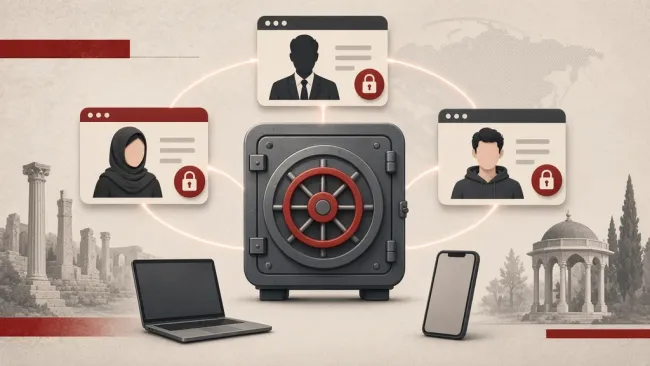
Storing passwords and generating a second sign-in factor are two different jobs, even if some apps do both. Mixing them without a recovery plan means that losing one phone can cut you off from both your passwords and your second factor. This page helps you match the tool to the job; each layer’s setup is covered in its own guide.
The choice between a local file and a syncing service is in the password manager guide. How to choose a second method and test recovery is in the guide to two-factor authentication. If an account is already lost, go to recovering a compromised account rather than changing every tool at once.
Separate the two jobs first
- A password manager should create unique passwords and keep them in a vault so the same secret is not reused across sites.
- A second factor should show that your device or key is present at sign-in, even if the password has leaked.
- Write down recovery for each one separately: how you reach the vault if the phone is lost, and how you get back into accounts if that same phone held the codes.
- Treat SMS as the weakest of the common methods, and use a better method first when one is available.
Password managers: local, synced or built into the system
A password manager creates random passwords and keeps them in a vault. There are three common families, and none is best for everyone.
A local file such as KeePassXC stays on your own device. Get the program from keepassxc.org. You control the file, and automatic sync is not the default. You have to decide where to keep a copy of the encrypted file and keep that copy apart from the master password.
A syncing service such as Bitwarden or 1Password moves the vault among your devices. Get the install from that service’s official site. The convenience is high; in return you have to think about how that service is maintained, about the master password, and about two-factor authentication on the vault itself if it is offered. Do not treat sync as a backup: if you lose the master password, the synced copy will not open either.
The manager built into the operating system is simple for someone who stays inside one ecosystem. It is tied to that same Apple, Google or Microsoft account. If you lose that account, the stored passwords are at the mercy of that account’s recovery as well.
- Pick one manager and move the main passwords — email, banking, stores, social networks — into it, rather than keeping three half-finished managers.
- Make the vault’s master password long and unique, and remember or write it somewhere separate from the vault itself.
- Make a recovery copy: put a second copy of the encrypted KeePassXC file somewhere else, or write down the syncing service’s recovery key off the device.
- Install a browser extension only from that browser’s official store, and do not follow a link inside a message.
Second factors: SMS, authenticator apps, hardware keys and passkeys
An authenticator app such as Aegis or other TOTP apps, a hardware security key and a passkey each resist phishing to a different degree. SMS is the weakest of the common methods, because a number can be moved to another SIM or the message can be read on the same phone.
- If you want Aegis on Android, get it from getaegis.app or the official store, not from a file in a messenger. On other systems use an official, maintained TOTP app.
- When an account shows a QR code, store it in the authenticator app and write that service’s backup codes down at the same moment.
- Buy a hardware security key from a known maker through an official path. Register it on your main accounts and keep a second key or a backup method so losing one key does not lock you out.
- A passkey on the device or in the password manager resists a fake page better than a password plus SMS. After you create a passkey, still read the account’s recovery path; a domain change or a lost device can stop the key working.
- If SMS is the only option, use it temporarily and upgrade to an authenticator or a key as soon as one is available.
Do not keep one-time codes only inside the same vault
If the password manager can also store TOTP codes, that is convenient — and it puts everything in one place. Anyone who reaches the vault then has both the password and the code. At higher risk, keep the second factor on a separate device or key.
- For highly sensitive accounts — the main email, the password manager itself, a bank — keep the code on a tool separate from the vault.
- Whichever you use, keep a backup of the secrets: an encrypted file, the service’s backup codes, or a second hardware key.
- Do not leave that backup only on the same phone or in the same synced folder as the vault.
- Test recovery once: sign in from a second device, or pretend the phone is unavailable, and see that the way back actually works.
Think in line with common 2026 guidance
More recent password guidance usually stresses length and uniqueness, and changing a password after a leak, rather than forcing a change every few months. It treats phishing-resistant second factors as better than SMS. This page is not an official standard; if you work for an organization, that organization’s policy comes first.
- Move short and reused passwords into the vault first and change them, not passwords that are already unique and long.
- Do not change a password only because a date on the calendar arrived, unless you have seen a leak or a suspicious sign-in, or workplace policy requires it.
- Wherever a passkey or a hardware key is available, prefer it to SMS.
What happens when you lose the tool
- If only the phone is lost and a synced vault is on the computer, you still have the passwords there; a second factor that lived only on that phone may be gone. Backup codes are what help here.
- If a local KeePassXC file lived only on that device and you had no copy, the passwords went with the device. That is the reason for a separate copy.
- If the password-manager account is broken into, change the master password from another device, close sessions and re-harden the accounts inside the vault in order of importance.
- Do not “rebuild” an authenticator app or a recovery file from an unofficial path.
How to move passwords into the vault
The move does not have to cover every account overnight. First move the accounts that, if leaked, open the rest: the main email, the app store itself, and the network that recovery of other accounts is tied to.
- Let the new manager create a random password for that account, sign in, change the password and store the new value.
- If the browser still shows old passwords, clear the browser’s save for that site after each move so two conflicting copies do not remain.
- Delete a password export file from the browser after it has been imported, and do not leave it on the desktop or in a chat; that file is often plain text and highly sensitive.
- You can move lower-priority accounts gradually, each time you sign into them.
Shared passwords and team accounts
Sending a password in an ordinary message, even to a colleague, leaves that secret in the chat history. If you must share access, use sharing inside the password manager itself or an account with a separate role, not a line of text in a group.
- When the collaboration ends, close access and change the password.
- Do not reuse a personal password on a work account.
- If the organization has an organizational password manager, follow that policy for organizational work and do not mix a personal vault into it.
Lock the vault itself like a vital account
- Turn on two-factor authentication for a syncing service, and choose a method that will not disappear together with the passwords if that same phone is lost.
- Close open sessions on old devices from that service’s own panel.
- Use a recovery email for the vault that you yourself control, and give that email a unique password and a non-SMS second factor. Do not share this recovery email with friends or in a work group.
Common mistakes
- Keeping every password in the browser with no master password and no extra copy.
- Storing one-time codes only inside the same vault that holds the passwords, with no separate copy, while the accounts are high-risk.
- Relying on SMS because “it was already on” and never upgrading.
- Installing a password manager or authenticator from a file in a group.
- Never testing recovery until the day the phone is lost.
- A single hardware key, with no second method, on an account your life depends on.
What to do today
- Set up a password manager and move your main passwords into it.
- Add a non-SMS second factor on those same accounts.
- Test recovery for both layers once.
- If the risk is higher, keep one-time codes for vital accounts apart from the vault and write backup codes down off the device.
- Install programs only from that project’s official path: KeePassXC from keepassxc.org, an authenticator from its official site or store. After you install, do a test sign-in on a second device and a complete test recovery this week, in fully calm conditions and without unnecessary rush or pressure.
Related guides

Passwords
Strong passwords: create them, remember them, protect them
Use a long, unique password for each account and let a password manager keep most of them. Length matters more than extra symbols; memorize the master passphrase and your device…
Passwords
Password managers: choosing one, backups and recovery
A password manager creates a different password for each account and keeps them in an encrypted vault. Whether you choose a local file or a syncing service depends on your devices…

Passwords
Two-factor authentication: which method, how, and a recovery plan
Two-factor authentication protects an account even if the password leaks, but methods are not equal. Prefer an authenticator app or a passkey over SMS for important accounts, and…
Communication
Suspected account compromise: contain, recover and revoke persistent access
If an account may have been taken over, change the password from a device you trust, sign out other sessions, and review recovery methods and forwarding rules. Changing the…