
Signal tool guide: account protection, contact checks and retention
Signal encrypts messages end to end and does not store conversation text on its servers. Set a username, limit who can see your number, turn on Registration Lock and verify contacts — and remember that without a cloud backup, losing the phone means losing the chats.
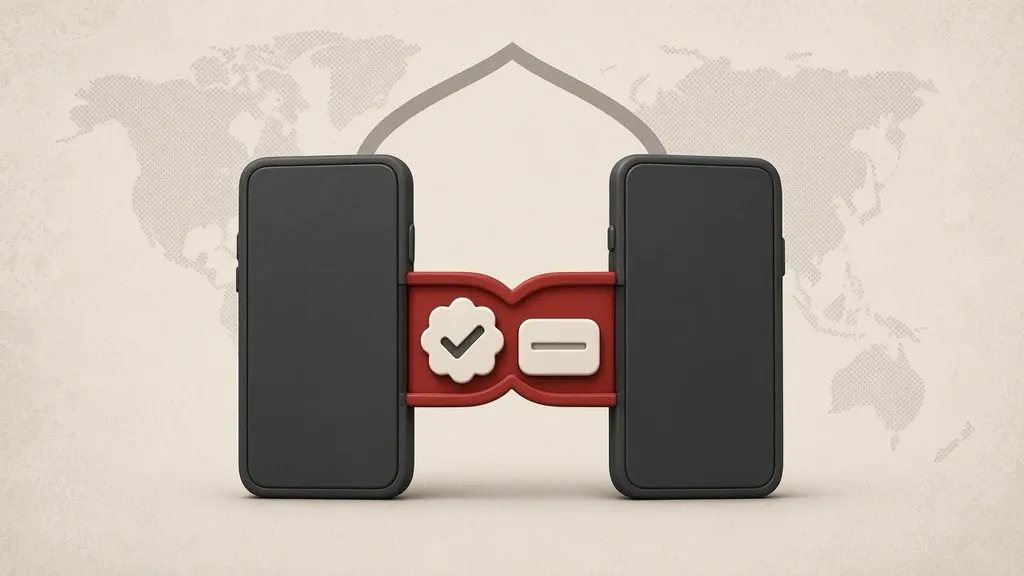
Signal encrypts messages end to end and does not keep conversation text in readable form on its servers. Set a username, limit who can see your number, turn on Registration Lock and verify contacts. Remember that without a backup you can restore, losing the phone means losing the chats. End-to-end encryption protects the text on the path; it does not stop a screenshot, an unlocked device, or a number that belongs to someone else.
Install Signal only from the official site signal.org or from that maker’s official store, not from a file sent in a group. Shared messaging advice lives in the safer-messaging guide if you want to compare channels.
Account, username and phone number
You still need a number to create an account. A username is a way to start a chat without handing out that number. A username is not the profile name people see in a chat: it is unique, usually ends with digits, and after a message request is accepted the other person sees the profile name instead.
- Open Signal and tap your profile picture or Settings.
- To create a username, open your profile and enter the username you want. If nobody needs to find you by searching a username, you can skip this.
- Go to Settings > Privacy > Phone Number.
- Choose who can see your number in profile details and who can find you if they already know the number. If you should not be findable by number, limit that setting.
- If you create a username, do not broadcast it in a public message unless a contact must reach you without the number. Do not put the username link or QR code in a large group.
The default is usually that someone who already has your number in their contacts can find you. Match that to what you actually need, not to a guess.
Registration Lock and the Signal PIN
A Signal PIN helps you recover your profile, settings, blocked list and some account data on a new device. The PIN is not a chat backup and will not bring message history back. Signal does not know your PIN and cannot recover it. If Registration Lock is on and you forget the PIN, you may be unable to register the number again for up to seven days.
- Go to Settings > Account.
- Turn on Registration Lock so someone cannot register the account on another phone with an SMS code alone.
- Store the PIN in a password manager or on separate paper, not in a chat and not in an email draft.
- Keep control of that number; losing the number without Registration Lock is a way in for someone else.
- Never send a registration SMS code, the PIN or a backup recovery key to anyone who claims in chat to be Signal support. Signal will not ask you for a code inside a chat.
Linked devices
You can link a desktop, tablet or another phone to the account. Communication on a linked device is end to end as well. The primary phone must come online at least once every thirty days or linked devices will be unlinked. The number of linked devices is limited.
- Get Signal Desktop only from the project’s official site, not from the first search result.
- On the phone go to Settings > Linked devices > Link a new device.
- Scan the QR code only from the official screen of the Signal app you yourself opened. A code someone sends in a message with “scan this to verify” can attach an attacker’s session to your account.
- If you do not recognize a device, remove it there. When in doubt, remove them all and link again only what is yours.
- After using a shared computer, unlink it from the list and sign out on that computer.
- Take that computer’s screen lock seriously; an open chat on a large display is easier to read than a phone.
Verify a contact with the safety number
Signal does not guarantee the identity behind a profile name. Verification means you and the contact compare a safety number or QR code through a path other than that same chat.
- Open the conversation and tap the name or header.
- Choose View safety number.
- If you are together, scan the QR code. If not, read the numbers on a voice call or in person that you already trust.
- After you compare, you can mark the contact as verified for yourself.
- If Signal says the safety number changed, ask why through another channel before you send sensitive material. A new device on their side creates this notice; if they did not get a new device, wait until the reason is clear.
- Take a profile-name change seriously too, and verify again if you are unsure.
Disappearing messages and message requests
- For one conversation, set a disappear timer in that chat’s settings.
- For new chats that you start, go to Settings > Privacy > Advanced and set disappearing messages there.
- Disappearing does not stop a screenshot or a second device, and messages that are about to expire may be left out of a backup.
- Do not accept a message request from a stranger in a hurry. Read the safety tips above that request.
- Signal does not contact you inside a chat and has no support bot. Anyone who says they are Signal security and wants a code is lying.
Screen lock, screen security and notifications
- Leave the phone’s own screen lock on; without it an in-app lock is weak.
- In Settings > Privacy, turn on Screen lock so returning to the app asks again for a passcode or biometrics.
- Turn on Screen security so screenshots inside the app are harder and the preview in the app switcher stays hidden. This does not stop another device’s camera.
- In Notification settings, limit message text on the lock screen.
- Avoid taking a call on speaker in a crowd when you can.
Secure Backups, and what the PIN does not do
By default Signal does not archive conversation text in readable form on its servers. If you do not turn on Secure Backups and the phone is lost, the history usually goes with it. An account PIN does not bring that history back.
- On the phone go to Settings > Backups.
- Tap Setup, then enable backups.
- Store the 64-character recovery key in a password manager or on separate paper. Without that key nobody—including Signal—can open the archive.
- Confirm the key and, if the choice is there, pick the free plan or the plan that keeps more media.
- Know that the archive usually holds all text and only recent weeks of media. View-once messages and messages that will disappear soon are left out.
- Do not send the key through the gallery or in a Signal chat.
Calls, receipts and relaying
- A call inside Signal is end to end as well. A call can still reveal a network address to the other party.
- If you do not want your network address to reach the other party during a call, turn on Always relay calls in Privacy settings when that option is there. The call may be a little less direct.
- Look at read receipts and typing indicators under Privacy and set them to match your need.
- Under Privacy > Advanced, if you want delivery receipts limited for strangers, look at the sealed-sender or allow-from-anyone option as that screen describes it.
Groups and blocking
- Treat a group like a room with several doors: any member can save or screenshot a message.
- Read the member list from time to time and limit who can add members in a work group.
- To block someone, go to Settings > Privacy > Blocked, or block from the chat itself.
- If you do not want someone to keep seeing your number after you block them, limit number visibility first and then block.
- Deleting a chat on your device does not delete the history from other people’s devices.
Media, automatic download and nicknames
- Limit automatic media download in data settings so a sensitive file does not land in the gallery by itself.
- For trusted contacts you can set a nickname only you see; their profile-name changes are still visible.
- Take the saved-contact icon seriously when you have granted address-book permission, but do not treat it as a substitute for verifying the safety number.
- Do not open a short link or an unknown executable even inside Signal.
A new phone or a lost phone
- Before you retire the old phone, have the PIN and backup key at hand and review linked devices.
- Register the number on the new phone and, if Registration Lock is on, enter that PIN.
- If you created a Secure Backup, restore it with the recovery key.
- After a successful transfer, reset the old phone so a local copy of the chats does not stay there.
- If you only install the app on a new phone and register the number again without a backup or a transfer, the history usually does not come along.
- If the phone is lost, unlink devices from another device if you can, rely on Registration Lock you already enabled, and treat the number as protected against a silent re-registration. Texts that were not backed up will not come back.
- Follow up with the carrier so registration SMS messages do not reach a thief.
Common mistakes
- Installing Signal from a messenger file instead of the official site or store.
- Scanning a “verification” QR code that arrived in a message.
- Sending an SMS code or PIN to someone who claims to be support.
- Assuming the PIN will restore chat history.
- Turning on Secure Backups and storing the key only on the same phone.
- Ignoring a safety-number change notice.
- Leaving Signal Desktop open on a shared computer.
Change number, delete the account and move to a new phone
- To change numbers, use Change phone number under Account settings and finish the official steps while you still have the old phone and number.
- Deleting the account from Account settings does not erase history from other people’s devices.
- When you buy a new phone, if the app offers Transfer account or transfer from another device, use that official path and keep both devices on until it finishes.
- After a successful transfer, reset the old phone so the local copy does not remain.
- If you only install and re-register on the new phone without a backup or transfer, history usually does not appear.
Group permissions and invite links
- Open group info and see who can send messages, add members or change the group name and photo.
- If there is a group link, do not spread it publicly, and reset or turn it off after the members are complete.
- Check an unknown member the same day. Take a banner about similar names in the group seriously.
- From a contact’s info card, see which groups you share; that sometimes reveals an unwanted link.
- Leaving a group does not delete earlier messages from other people’s phones. If sensitive material already went out, assume a copy remains.
If Signal itself will not connect
Sometimes a network blocks access to Signal. The official app has a built-in option for getting around that block. Do not confuse it with installing an unofficial “unlimited” copy.
- Update Signal from the official path.
- In Settings > Data and storage look for censorship circumvention or Use proxy, and turn on only that official option if the app offers it.
- Do not enter a proxy or a configuration file from an unknown message.
- If it still will not connect, try mobile data or another network.
Set notifications more precisely
- In Notification settings see whether the name and message text appear on the lock screen.
- You can silence more sensitive chats, but limiting previews for everyone is usually more useful.
- Sound and vibration can reveal a conversation name in public; judge that.
- Check notification previews on desktop too; a large display makes the text readable from a hallway.
Profile photo, about and stories
- A profile photo and about text are visible in chats. Do not put something there that reveals more identity than needed in a group screenshot.
- If Signal has Stories, set their audience separately from a one-to-one chat and do not treat them as a public channel.
- You can change a username later; the old one may be released. Do not treat it as a permanent address unless you keep it.
Signal does not talk to you inside a chat
Official announcements appear on some devices in a What’s New chat you cannot reply to. Any call or message that says your account is in danger and you must hand over a code is fake. Treat urgency, many typos, a short link and a payment request as a reason to stop, block, and report spam if needed.
- To check that the account is active, send a message to Note to Self and see that a sent mark appears.
- If a yellow banner at the top of the chat list asks you to re-register, take it seriously and do not register from an unknown device.
- Update Signal only from the official store or official site.
Grant address-book access deliberately
If you grant contacts permission, Signal can show people whose numbers you have and who allow themselves to be found by number. That is convenience, not identity verification. If it should not be obvious whom you know, deny the permission and add a contact with a username or by typing the number yourself.
- You can later revoke the permission in system settings for Signal.
- Revoking it does not delete earlier conversations from the other person’s device.
- If you granted contacts permission, match “who can find me by number” to that choice.
Keep the backup key in two places, not on the same phone
- One copy in a password manager and one on paper away from the phone bag is enough for most people.
- Do not photograph the key into a synced gallery.
- If you lose the key the archive is unreadable forever; create a fresh set only while you still have that device and backup setting.
- If you do not see Backups in settings, update the app from the official path; the feature may have arrived gradually.
- Do not confuse an older on-disk Android chat backup with the newer Secure Backup, and do not leave either unprotected.
View-once media and desktop
- Do not treat view-once media as a guarantee of destruction; a second device or a photo of the screen is still possible.
- You can also open the safety number on desktop from that chat’s info; compare it there or on the phone.
- A linked device usually syncs chats and recent weeks of media. Unlinking it does not erase files already stored on that disk unless you delete them yourself.
- The phone should remain the primary device; a tablet and computer link to it.
The number, a second SIM and an unlocked phone
- Register Signal with a number you control, not a temporary work SIM that will be taken back tomorrow.
- If you have two SIMs, register on the one whose recovery SMS you yourself receive.
- Registration Lock protects against re-registration with SMS, but an unlocked phone with no screen lock means the chats are readable right there.
- If the phone is lost and it had a screen lock, besides following up on the number, unlink devices and keep the backup key away from the thief.
Keyboards and an outdated app
- For a sensitive chat use the system keyboard, not a third-party keyboard that sends what you type to a cloud.
- Do not leave an old Signal version in place; an official-store update keeps both security and compatibility with contacts.
- Do not install a modified copy with a similar name, even if it promises extra features.
If you are told the number is registered on another device
Sometimes Signal tells you on your phone that the number is now registered on another device. That may be your own new phone, or a re-registration without your consent.
- If you did not just register a new phone, check Registration Lock and control of the number immediately.
- From a device you still have, unlink linked devices.
- Do not send anyone an SMS code you did not ask for.
- After you get back into the account, change the PIN if it may have leaked and read the device list again.
- Tell important contacts the safety number may have changed and compare it again.
Group calls and links
- Do not treat a call link or invite like a public group link.
- In a large group, verifying every member is hard; take highly sensitive material to a smaller chat whose members you have verified one by one.
- Do not take a call on speaker in public, and do not show the member list on the screen in a crowd.
Storage and media quality
- If the phone is low on storage, Signal may not keep media completely. Manage that by deleting deliberately, not by filling the disk by surprise.
- After you view a sensitive file, if it should not stay on the device, delete it from the chat and the gallery, and know the other person still has their copy.
- Secure Backups do not keep old media forever; keep an important file in a separate encrypted copy outside the messenger.
What Signal does not hide
Text and files in a conversation are encrypted between devices and are not stored in readable form on the server. Registration still depends on a number, screenshots are possible, and anyone who reaches an unlocked phone can read the chats. Installing Signal does not make you fully anonymous; if anonymity is the goal, treat the number, recovery email and device as a separate problem.
- A username hides the number from a new contact, but the account is still tied to the registered number.
- Relaying calls keeps your network address from the other party; it does not hide you from everyone.
- A large group and a backup without a separate key weaken that same confidentiality.
What to do today
- Open number visibility and find-me-by-number in Privacy settings and match them to your need.
- Turn on Registration Lock and store the PIN outside the app.
- Read the linked-device list and remove anything unfamiliar.
- Compare a safety number once with a nearby contact.
- If the history matters to you, set up Secure Backups and keep the key separately; if not, know that losing the phone means losing the chats.
- Set screen lock, screen security and notification previews.
- Once, practice not sending an SMS code or PIN in reply to a “Signal support” message, and remind people around you of the same thing.
- Install Signal Desktop only from the official project site and scan the link QR code only from the official screen of the app you yourself opened on your own computer, not from an unknown incoming message.
Related guides

Communication
Safer messaging: encryption, contact verification and group management
Safer messaging depends on the kind of chat, contact verification, group membership and where backups live. Signal and WhatsApp encrypt message bodies end to end by default;…
Communication
Suspected account compromise: contain, recover and revoke persistent access
If an account may have been taken over, change the password from a device you trust, sign out other sessions, and review recovery methods and forwarding rules. Changing the…

Passwords
Two-factor authentication: which method, how, and a recovery plan
Two-factor authentication protects an account even if the password leaks, but methods are not equal. Prefer an authenticator app or a passkey over SMS for important accounts, and…
Passwords
Password managers: choosing one, backups and recovery
A password manager creates a different password for each account and keeps them in an encrypted vault. Whether you choose a local file or a syncing service depends on your devices…

Files and information
Removing identifying information from photos, videos and documents
Before you publish a photo, video or document, review both the visible content and the hidden metadata. GPS location, an author’s name and leftover comments can travel with the…

Internet connection
Internet circumvention: choosing routes and assessing risk
A site that will not open is not always being censored. If blocking is deliberate, get tools only from official sites and do not trust random VPN apps from chat channels. A VPN…