
File-tool resources: protection, publication and recovery
For files, encryption at rest, stripping metadata before you publish and a tested backup are three separate jobs. Choose a tool that matches the job; an undelete program is not a substitute for a backup.
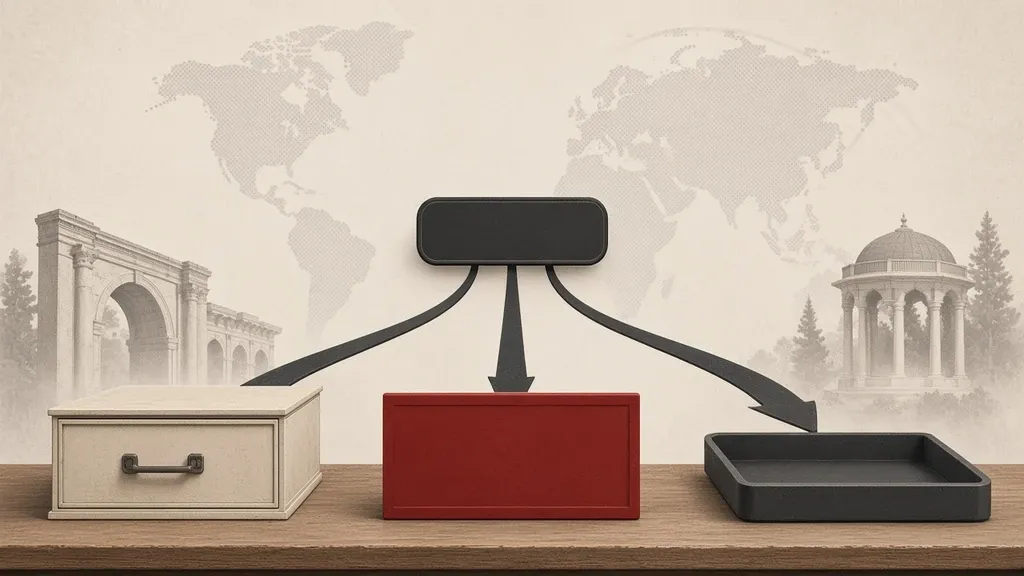
With files you usually face three separate jobs: protecting them while they are stored, removing identifying information before you publish, and getting back a copy that was lost. You do not need several programs running at once for all three. Pick each tool for the job you actually have.
Full-disk encryption is different from a separate container for a few files; that distinction is in the guide to secure file storage. This page helps you match a few well-known names to the right job, install them from the official path and look at recovery before the day of an incident.
Write down the job first
- If a file should stay on the same computer, or inside a separate file, and should not be readable without a secret, you are thinking about encryption at rest.
- If you are publishing the file for other people, review metadata before you send it. Encrypting a container does not strip the author’s name or a photo’s coordinates from the published copy.
- If you are worried about losing the file, make a tested backup first. An undelete program after the fact is not a substitute.
- If you are selling or handing over a device, go to sanitizing, not to recovery software.
An encrypted container with VeraCrypt
VeraCrypt is a well-known way to build an encrypted file container: inside it, folders look like an ordinary drive, and outside the program you only see one large file. Get the installer only from veracrypt.fr, not from the first search result or a file in a group chat.
- After you install, open Create Volume and choose Create an encrypted file container.
- For most work a Standard VeraCrypt volume is enough. Make the size a little larger than today’s need; growing it later takes planning.
- Put the container file somewhere your backup will include, but do not store the password in the same folder.
- Use a long, unique password and keep it off that same computer. If you forget the password, the contents do not come back.
- To use it, select the file in the program window, pick a free drive letter and choose Mount. After you finish, choose Dismount; do not leave the computer with the volume mounted.
- Run Backup Volume Header once from Volume Tools and keep that copy separately; damage at the start of the container file can make opening it hard.
A VeraCrypt container is useful when you move or archive several sensitive files together. It does not replace the operating system’s own disk encryption: if the whole disk is not encrypted, other files and temporary copies stay readable.
A cloud-synced folder: Cryptomator
Cryptomator is designed for a folder that syncs with a cloud service. Files open in a vault on the same computer, and what goes to the cloud is in encrypted pieces. Get it from cryptomator.org.
- After you install, create a new vault and place it inside your cloud-sync folder.
- Give the vault a unique password. The app usually also gives a recovery key; write that down outside the same cloud folder.
- Put sensitive files into the vault only while it is unlocked. Do not send the unlocked view to a separate sync.
- Before you rely on this method, unlock the same vault from a second device and confirm the file comes back.
- If both the password and the recovery key are lost, the cloud service cannot read the contents for you; that is both the strength of the design and the recovery risk.
Cryptomator is not encryption of the cloud account itself, and it does not protect other folders in that account. Harden sharing links and the account profile separately; the Google-account guide covers that environment on its own.
An encrypted archive with 7-Zip
7-Zip can encrypt an archive with AES and is a common way to send several files in one package. Get the program from 7-zip.org. The names of files inside are not always hidden, and you must send the password through a separate channel, not in the same message that carries the archive.
- Select the files and open Add to archive.
- Prefer the 7z format. In Encryption set AES-256 and, if Encrypt file names is available, turn that on as well; that hiding is not always available in the zip format.
- Choose a unique password and do not write it in the chat that carries the file, on the parcel label or in the archive’s own name.
- Before you delete the original, open the archive once on the same device or on a second one.
- An encrypted archive is still a single copy. If that is all you have and it is damaged, there is nothing to restore.
Review metadata before you publish
Encrypting a container or an archive does not remove identifying information from a published copy. An author name, a company, a folder path, an edit date and a photo’s coordinates can stay inside the file. Follow the method in the guide to removing identifying information. To start, the program’s own tools are usually enough.
- In Word, Excel or PowerPoint open File > Info > Check for Issues > Inspect Document, choose Inspect and remove only the categories you do not want travelling with the file.
- On a Mac, open the document or image in Preview and use Tools > Show Inspector. If you need a fresh copy to send, export one and inspect that copy.
- Look at photographs separately: many phones write a location into the file. Check that in the file’s details or with the operating system’s own tools.
- Do not upload a sensitive file to an unknown site that promises to strip metadata; the upload itself can spread the content.
- A command-line tool only helps if you know which fields it removes. If you do not check the result, it gives a false sense of safety.
Recovery means a tested backup
The best recovery is a copy you made before an incident and restored once, not a program that promises to revive a file after deletion. How to build that kind of copy is in backups you can restore.
- Keep important files in more than one place: the working device, and a separate copy that will not fail at the same time.
- If you use a container or a vault, keep the password or recovery key outside that same container; otherwise the second copy will not open either.
- Once, in calm conditions, test opening the container, vault or archive on a second device.
- Check the Recycle Bin or Trash first. Many “deletions” are still there and do not need a rescue tool.
What a rescue program after the fact cannot do
Tools that promise to undelete files often over-claim on SSDs and in cloud storage. On an SSD, TRIM usually takes the data out of reach quickly. In the cloud, the file is either in that service’s trash or already removed on the provider’s side, and a desktop program has no magical access to it.
- These same tools often copy whatever they find to a new place. If the document was sensitive, that fresh copy is itself a new disclosure.
- Do not run a deep disk scan on a device you think is already compromised, or in front of people you do not trust.
- Do not trust software that says “everything comes back”; first look at what kind of file it was and what kind of storage it lived on.
- If you are selling or handing over a device, use the guide to sanitizing sensitive data, not a recovery program.
Install only from the official path
- Get VeraCrypt from veracrypt.fr.
- Get Cryptomator from cryptomator.org.
- Get 7-Zip from 7-zip.org.
- After you install, keep updating from the same path and set aside a “plus” or cracked build.
- If you can, check the signature published on the official site once; a familiar name in an unknown store is not enough.
Common mistakes
- Installing several containers and several compressors at once without ever testing a restore.
- Sending the archive password in the same message that carries the file.
- Assuming that encrypting a container also strips metadata from a published copy.
- Relying on a rescue program instead of a weekly backup.
- Leaving a Cryptomator recovery key or a VeraCrypt password inside the same synced folder.
- Uploading a sensitive document to an online metadata cleaner or a multi-engine scanner.
Keep the secret apart from the file
A container, a vault and an archive only finish the job if their secret travels separately from the file itself. If you put both in one cloud folder or one message, anyone who reaches that folder has both.
- Write the password in a password manager or on a paper copy in a safe place, not in a text file next to the container.
- If you must give a colleague the password, use a different channel from the one that carried the file.
- When shared work ends, change access and the password; do not treat the old secret as permanent.
What to do today
- Pick one encryption method for files that travel — a container, a cloud vault or an archive — and test opening it once.
- Inspect metadata with the program’s own tools before you publish a document.
- Make a real backup this week instead of installing a rescue tool, and write down where its key lives.
- If you are selling or handing over a device, go to sanitizing rather than installing a file-recovery program.
- Remove programs that came from an unofficial path today, and from now on keep only the official build of the same tool.
Related guides

Files and information
Secure file storage: encryption, recovery keys and unintended copies
Encryption makes it hard to read files on a lost device or disk, but it does not protect an open file or leftover plaintext copies. Treat disk encryption and file encryption as…

Files and information
Removing identifying information from photos, videos and documents
Before you publish a photo, video or document, review both the visible content and the hidden metadata. GPS location, an author’s name and leftover comments can travel with the…

Files and information
Sanitizing sensitive information: deletion, reset and device retirement
Emptying the trash usually does not destroy data forever. Before you sell a device, back up what you still need and use a factory reset on a disk that was already encrypted, and…

Files and information
Backups and recovery: copies you can actually restore
A backup counts only if you can restore it without the lost device or account. Syncing is not enough; keep extra copies of what matters, store at least one copy somewhere else,…